What a hotkey does on this auto clicker
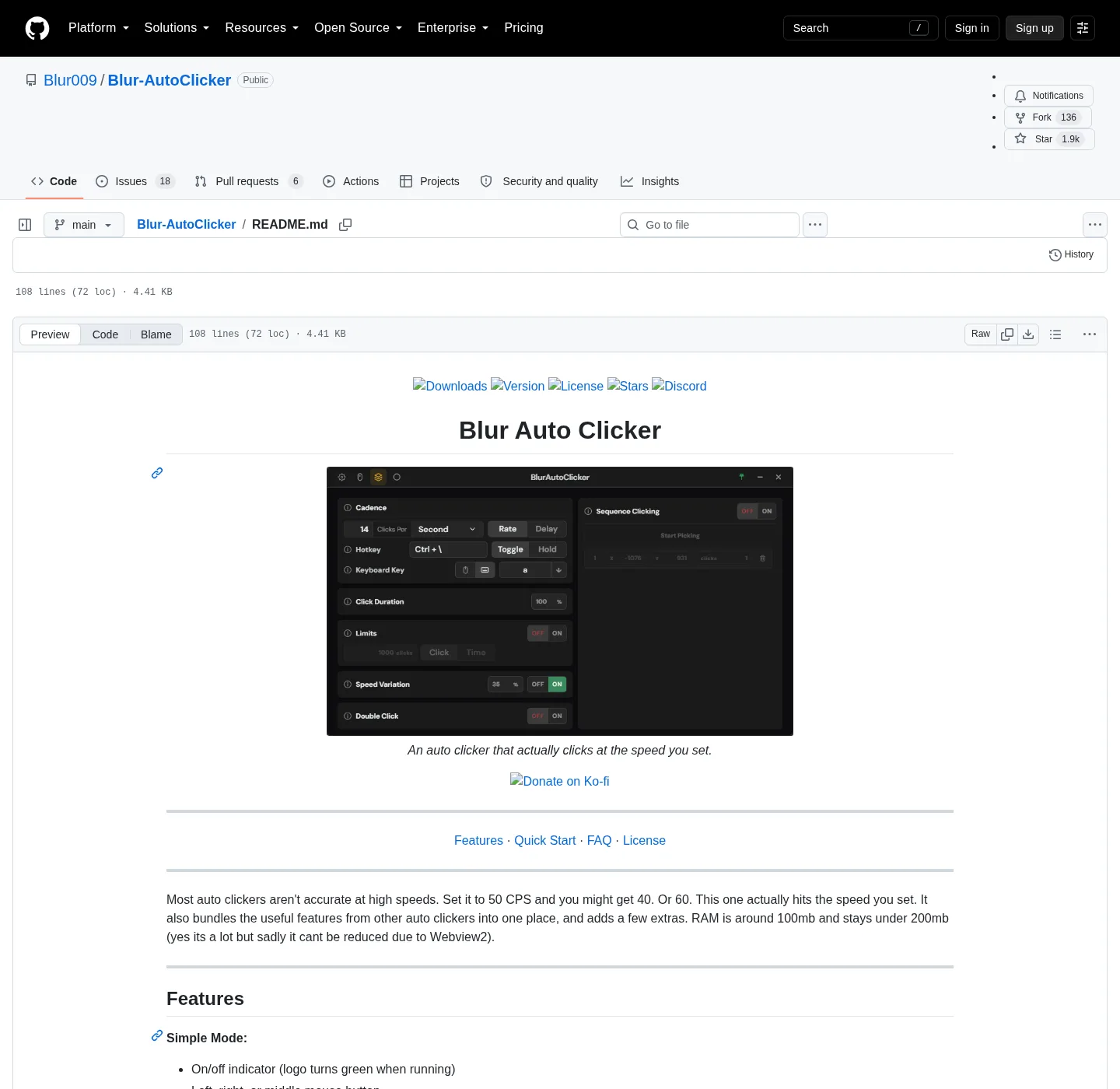
Blur Auto Clicker is a Windows CPS auto clicker with a customizable hotkey. The hotkey is the start and stop control. Interval, mouse button or keyboard key, and hold versus toggle sit next to it. The README lists customizable hotkeys in simple mode, with a logo that turns green while the auto clicker is running. Clicks go to the foreground window. Set the hotkey before the first run so you can stop without hunting the window.
Official install:
winget install -e --id Blur009.BlurAutoClicker --source winget --silentRelated: install on Windows, winget auto clicker, keyboard auto clicker, guides, and auto clicker.
The product is made for Windows, GPL-3.0, no account. Config lands in %AppData%\BlurAutoClicker for the installed app. The exe after winget or setup is %LocalAppData%\BlurAutoClicker\BlurAutoClicker.exe. Files stay on GitHub Releases.
Hold versus toggle
Hold and toggle are the two activation styles in the README. Hold means the clicker runs while you keep the hotkey down and stops when you let go. That matches a mouse-down feeling: your finger is the dead-man switch. Toggle means one press starts the run and the next press stops it. Toggle frees the hand that held the key.
Pick hold when the job is short and you want an obvious off. Pick toggle when the interval is slow (per minute, hour, or day) or when you need both hands on something else. Either way, know which mode you are in before you aim at the foreground window. A toggle hotkey left running will keep sending clicks until you press it again.
If two auto clickers share a key, both may fire. After a switch from GS Auto Clicker or another leftover exe, remove the extra program so only Blur owns that hotkey. Move notes: switch from GS Auto Clicker and move leftover clicker exes.
Mouse button versus keyboard key
Simple mode covers left, right, or middle mouse button, and keyboard key pressing with case control. Those are the repeated actions. The hotkey is the on/off control, not the click itself. Do not confuse the key you repeat with the key that starts the run.
If the job is repeating a letter or a game-style key, use keyboard mode and set case as the README describes. Walkthrough: keyboard auto clicker. If the job is a mouse button at a CPS rate, stay on left, right, or middle, then set interval on auto clicker interval. Position clicking still uses a hotkey to start; the mouse then moves to the saved point: position clicking.
Advanced mode keeps the same hotkey model and adds duty cycle, random CPS, edge stopping, click and time limits, double clicks, and per second through per day. None of those replace the stop key.
How to set a hotkey
Open the installed exe after WebView2 is present. RAM sits around 100mb and under 200mb per the README because of that runtime. Assign a customizable hotkey you can reach while looking at the target window. Avoid keys the foreground app already uses for something you still need. Avoid a key you type all day if you chose toggle.
Set interval and button (or keyboard key) next, then choose hold or toggle. Start on a disposable window: Notepad, an empty folder, anything you can afford to click. Confirm the logo turns green while running and returns when you stop. If nothing happens, the hotkey may be captured by another program, or an old leftover clicker may still be bound to the same key.
GitHub issues have asked for two hotkeys for different buttons, hotkeys for saved presets, and holding a keyboard key rather than only clicking it. Those are issue titles, not README features. Do not claim they ship. One customizable hotkey plus a button or key in the window is the documented shape.
How to stop quickly
Stopping is the same hotkey. Toggle: press again. Hold: release. If the window is minimized to the tray, the hotkey should still be global in the sense the product describes a system-wide start/stop; if a run continues, restore the window and press the key again. Duplicate tray icons have appeared in an issue thread; that is a bug report, not a second copy you should install.
Edge stopping in advanced mode can halt the clicker when the cursor hits a corner or screen edge. That is a backup, not a replacement for a hotkey you remember. Click limits and time limits also stop a run after a count or a duration. Interval guide covers those caps. Still set a hotkey you can hit immediately.
This auto clicker sends clicks to the foreground window. It is not a game-cheat walkthrough. Random CPS is a timing range, not a way to hide clicks.
Feature requests that are not in the README
| Ask | README | What to do today |
|---|---|---|
| Customizable hotkey | Yes, simple mode | Assign one key, then test stop |
| Hold or toggle | Yes | Pick one activation style |
| Keyboard key as the click | Yes, with case control | Use keyboard mode, not the hotkey, as the repeated key |
| Two hotkeys for two buttons | Issue request, not README | Change button in the window |
| Hotkey a saved preset | Issue request, not README | Change settings by hand |
| Hold a key instead of clicking it | Issue request, not README | Keyboard mode repeats a press as documented |
| Mouse-wheel scrolling | Issue request, not README | Do not claim it ships |
| Delay between click points | Issue request, not README | Position click is a spot, not a timed path |
Build-from-source readers still get the same hotkey UI; compile steps live in BUILDING.md and build from source.
Install then bind a key
App Installer on Windows 10 1809 or later, or Windows 11, provides winget. The package id is Blur009.BlurAutoClicker. GitHub setup pattern is BlurAutoClicker_*_x64-setup.exe. Portable zip is the other official file: portable or setup. Ignore .sig and latest.json. Safe download: download safely and is this auto clicker safe. Releases: auto clicker releases. GitHub: open source auto clicker on GitHub. This computer: auto clicker for this computer.
The setup is not Authenticode-signed. SmartScreen may show Windows protected your PC. That is an unsigned-file warning: Microsoft SmartScreen and windows-release-trust.md. License: GPL-3.0. About: about. Windows cluster: open source auto clicker on Windows.
If an old v2 exe is still on disk, delete it first. The installer will not. Old configs will not open in v3+ and are deleted on first launch.
After the hotkey works
Keep one official Blur copy. Compare tools that are not hotkey CPS clickers: vs TinyTask (recorder), vs AutoHotkey (scripts), vs MurGee (trial then paid). GS freeware: vs GS Auto Clicker.
Set interval units next if you have not: per second, minute, hour, or day, with a README cap around 500 CPS. Then, if the cursor must leave your hand, use position clicking.
Hotkey steps:
- Run the official winget command or the x64 setup from GitHub Releases.
- Open the window and set a hotkey you can reach without fighting the target app.
- Use hold to run while the key is down, or toggle to flip running state on each press.
- Start on a disposable foreground window, confirm the logo turns green, then stop with the hotkey.
Frequently asked questions
How do I set a hotkey on this auto clicker?
Install Blur Auto Clicker, open the window, and assign a customizable hotkey before you run. Pick hold or toggle, then test stop. Related: install on Windows.
Should I use hold or toggle on this auto clicker?
Hold keeps clicking while the hotkey is down and stops when you release it. Toggle starts on one press and stops on the next. Pick toggle if you need a free hand. Pick hold if you want the clicker tied to your finger.
Can I use a keyboard key instead of a mouse button?
Yes. Simple mode includes keyboard key pressing with case control, separate from left, right, or middle click. That job sits on keyboard auto clicker. The hotkey still starts and stops the run.
How do I turn this auto clicker off quickly?
Press the same hotkey again on toggle, or release it on hold. The logo turns green while running. Set that stop key before you test on the foreground window. Do not bind a key you still need for typing.
Can I bind two hotkeys to two buttons?
GitHub issue threads have asked for two hotkeys for different buttons and for hotkeys on saved presets. The README does not list those as shipping features. Bind one customizable hotkey, then change button or key in the window.