This path is Windows, and the repo about text says the project is made for Windows. The README does not document brew, snap, or a phone package, and an unofficial macOS port is a GitHub issue, not an unofficial URL. If the machine in front of you is not Windows, stop, and home: auto clicker home.
Requirements
| Need | Why |
|---|---|
| Windows 10 1809+ or Windows 11 | winget ships with App Installer on those builds |
| WebView2 | README RAM note; UI runs on WebView2 |
| App Installer | Provides winget if you use the command |
| x64 | Current GitHub setup is x64 |
App Installer: Microsoft App Installer; WebView2 is Microsoft Edge WebView2 Runtime, and if a process starts and no window appears, install that runtime and launch again. Longer Windows notes: Windows install.
Install with winget
Paste the README command into PowerShell or Windows Terminal on the PC that will send clicks:
winget install -e --id Blur009.BlurAutoClicker --source winget --silentThat id is Blur009.BlurAutoClicker in microsoft/winget-pkgs, installer type nullsoft, user scope, default location %LocalAppData%\BlurAutoClicker. Winget guide: winget, and releases list: which file.
First run
Open the app from the Start menu, and documented exe path: %LocalAppData%\BlurAutoClicker\BlurAutoClicker.exe; Pick left click, set a low rate, bind a hotkey, choose hold or toggle, then test on a throwaway window. Keyboard keys: keyboard notes, and hotkeys: hotkeys guide.
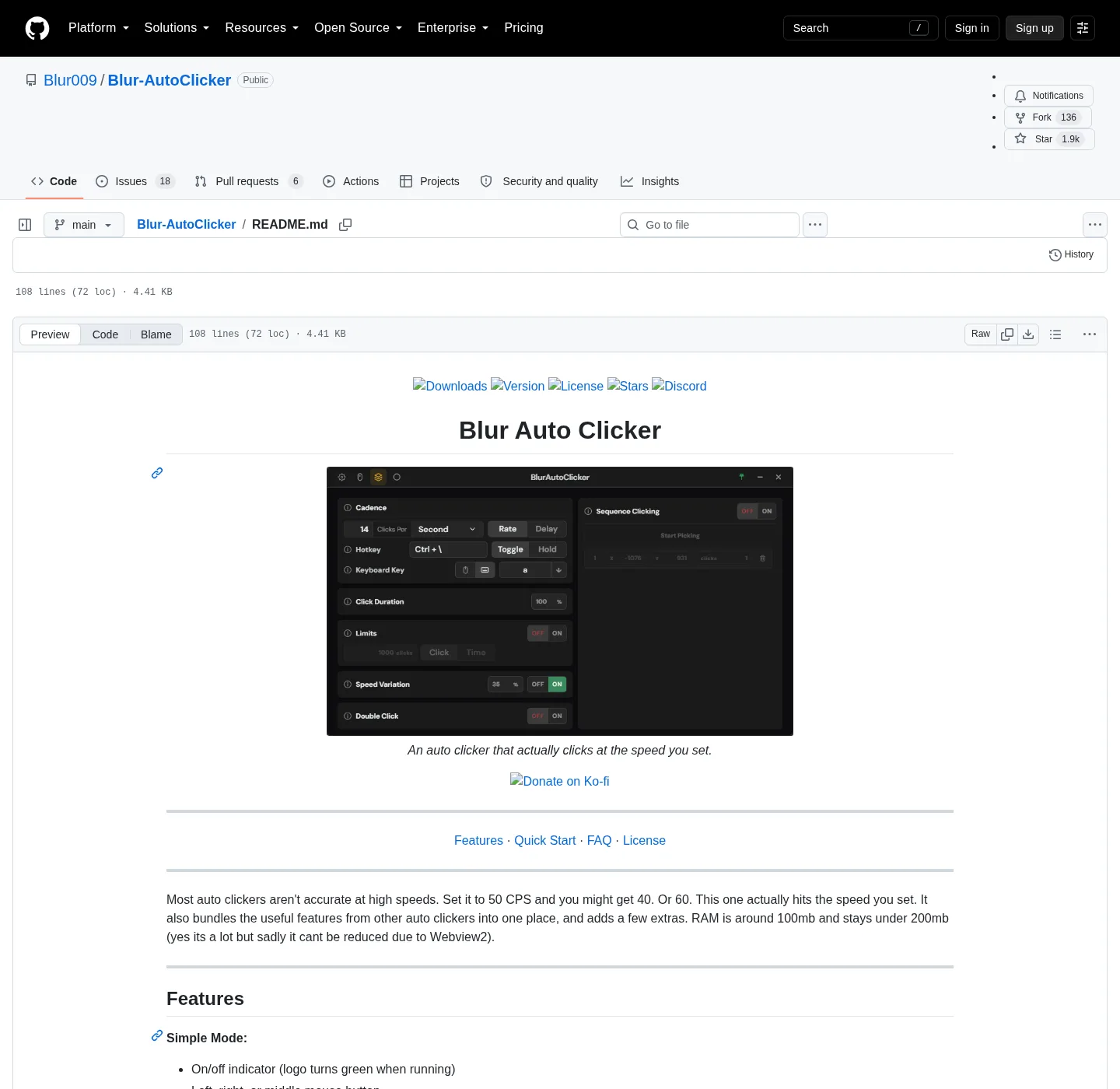
Hold fires while the key is down; Toggle starts on one press and stops on the next. Edge stop can end a run if the pointer hits a screen edge, and position clicking aims at a fixed pixel. Interval can be per second, minute, hour, or day; README default CPS cap is about 500. Details: interval and position click.
SmartScreen
Windows may show Windows protected your PC because the setup is not Authenticode-signed, and project doc: windows-release-trust.md. Tauri updater signatures on .sig files are not Authenticode, and fetch from GitHub or winget, not from a wrapper site. Safety: is it safe and download-safe.
Where files live
Install: %LocalAppData%\BlurAutoClicker; Config and stats: %AppData%\BlurAutoClicker, and portable: a Data/ folder next to the exe after portable.txt. There is no account; README does not name a telemetry product, and privacy notes: privacy.
Update and uninstall
Setup installs can use the project updater; Portable needs a new zip from Releases. Uninstall with Apps settings or winget uninstall Blur009.BlurAutoClicker, then delete the LocalAppData and AppData folders if you want a clean slate. Old v2 configs do not open in v3, and extra copies: extra exes, and guides: guides hub. GitHub: repo notes.
Paths, updates, and a clean uninstall
After setup, the documented exe is %LocalAppData%\BlurAutoClicker\BlurAutoClicker.exe, and config plus stats sit in %AppData%\BlurAutoClicker unless you turned on portable mode. Portable mode needs a portable.txt file next to the exe with the exact content BlurAutoClicker Portable Mode, after which settings live in a Data/ folder beside that exe and the in-app updater does not run. Update on the same channel you used: winget upgrade -e --id Blur009.BlurAutoClicker, a new x64 setup from GitHub Releases, or a fresh portable zip. Uninstall from Apps settings or with winget uninstall Blur009.BlurAutoClicker, then delete those two folders if you want a clean slate. Version 2 configs do not open in version 3, so delete the old executable first, as the README says, then re-enter interval and hotkey.
First run on this computer should be a slow left click into a throwaway window, with a hotkey you can remember and hold or toggle chosen on purpose. Edge stop is the panic brake if focus jumps. Keyboard key pressing with case control is in the same app, walked on the keyboard notes. Default CPS is capped at 500, and settings can raise the cap to 1000, which is a product limit rather than a promise every form will accept it. Random CPS is not an anti-ban feature; the project homepage says speed variation does not save anyone from a game ban. Extra unsigned copies on Desktop belong in the recycle bin after this install works, which is the migrate URL for extra executables.
Why WebView2 matters on this PC
The project is a Tauri app, and the window is a WebView2 surface, not a custom drawing stack. Microsoft ships Edge WebView2 Runtime as a separate install on some Windows 10 machines. If the exe starts in Task Manager and no window appears, install that runtime from Microsoft, then launch again. Windows 11 often already has it, and the README RAM note exists because the webview has a cost even when the clicker is idle.
Do not hunt a third-party webview pack from a download farm, and use Microsoft. If winget is missing, install App Installer from Microsoft, then retry the README command. Winget is the quieter path because it already maps the GitHub setup.
Scope of the install
The winget manifest is user scope, and the files land under your profile, not under Program Files. That is why the documented location is LocalAppData, and a second Windows user on the same PC does not automatically get the same copy. If two people share a machine and both need the clicker, each person runs winget in their own session, or you share a portable folder they both understand. Do not copy the LocalAppData folder by hand into another profile, and that is how config and updater state get confused.
There is no license key, and license is GPL-3.0 on the repo, and source stays public. Building from source is a separate guide, not this setup walkthrough, and build notes: build from source.
What this computer is not
This is not a phone clicker, not a browser extension, and not a script you paste into AutoHotkey. If the job is a full automation language, AutoHotkey is the better product and the compare page says so. If the job is a recorded mouse path, TinyTask is the better product, and this machine setup is for a Windows clicker with interval, hotkey, hold or toggle, and optional position clicking. Compare: vs AutoHotkey.
Updates on the same channel
Stay on the channel you used at install, and if you used winget, upgrade with winget. If you used the GitHub setup, take the next x64 setup from the current tag. If you unpacked the portable zip, download the next zip; Portable has no in-app auto-update, which BUILDING.md already states. Mixing a new zip with an old winget copy is how two hotkeys appear again. The current tag is injected on the stamp, not typed here as a pinned number.
Uninstall from Apps settings or with winget uninstall Blur009.BlurAutoClicker, and documents you clicked through stay on disk unless you delete them. Remove %LocalAppData%\BlurAutoClicker and %AppData%\BlurAutoClicker only when you want a clean slate, and extra unsigned copies belong in the extra-exe notes, not next to the official install.
Frequently asked questions
What does this auto clicker need?
Windows, WebView2, and either winget via App Installer or the GitHub x64 setup, and no account.
Where is config stored?
In %AppData%\BlurAutoClicker after a setup install, or in portable Data/.
Why is there no window?
Install Microsoft Edge WebView2 Runtime and launch again; README ties the UI to WebView2.