Current cursor versus a fixed point
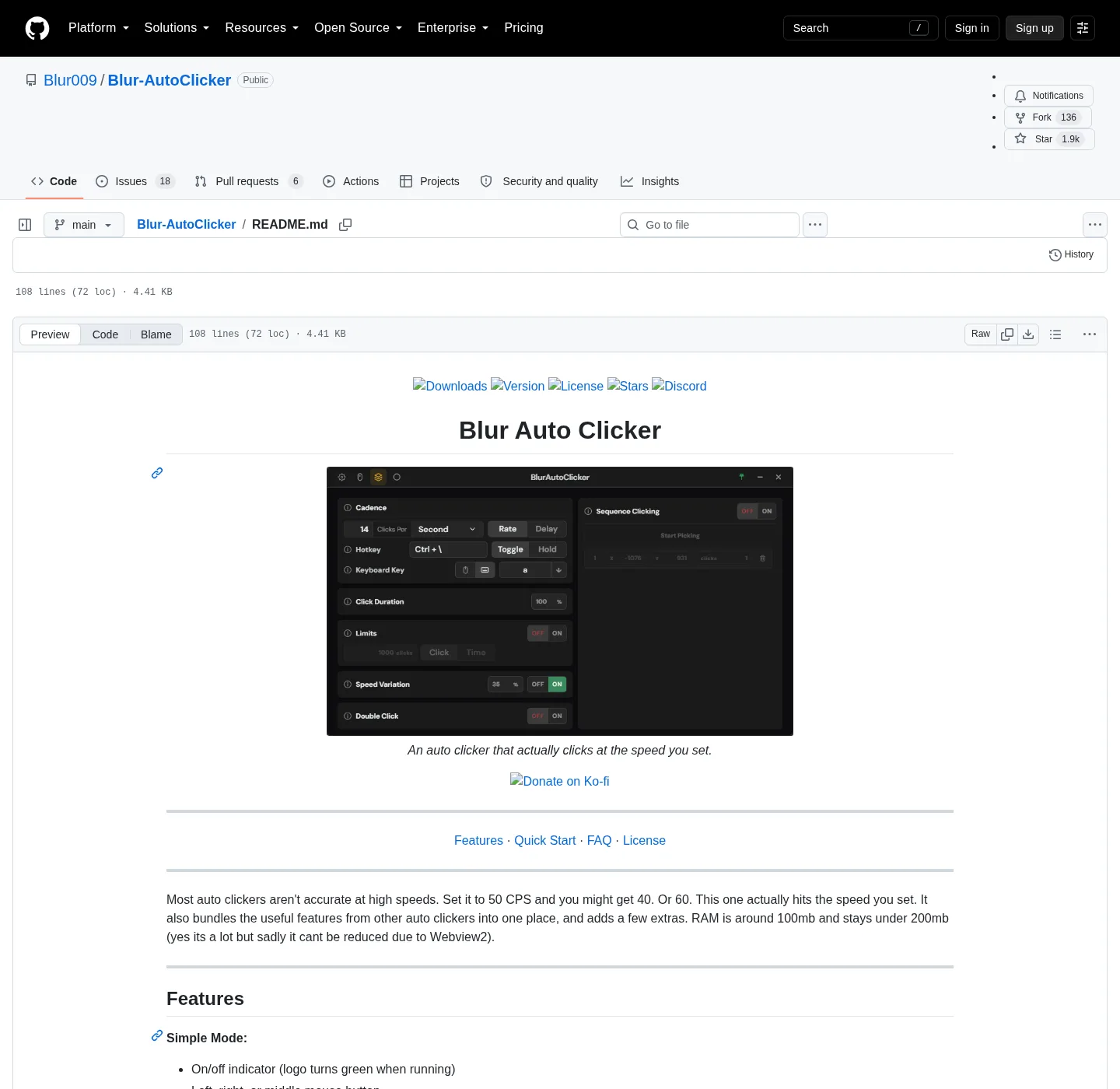
Blur Auto Clicker can click wherever the cursor already is, or it can move to a saved point and click there. Position clicking is the second job. The README describes it as: pick a spot, the mouse moves and clicks there. That lives in advanced mode with double clicks, edge stopping, limits, duty cycle, random CPS, and interval units per second through per day.
If you only needed clicks under a hand-held cursor, stay on the current pointer and skip the point picker. If the cursor must leave so you can use the keyboard, or so the click lands on a control you are not hovering, use position clicking. The stored point is a screen location. If the target window moves, the point is stale. Pick the spot again.
Install:
winget install -e --id Blur009.BlurAutoClicker --source winget --silentRelated: auto clicker interval, auto clicker hotkeys, install on Windows, guides, auto clicker.
How position clicking works
You pick a screen location. When the hotkey starts the run, the mouse moves to that location and the auto clicker clicks at the interval you set. Left, right, or middle still apply. Double clicks apply if you enabled them. The logo turns green while running. Clicks still go to whatever sits at that point in the foreground window.
This is not a multi-step path with waits between points. GitHub issue threads have asked for delay between click points. The README does not document that as a shipping feature. Do not advertise a sequence recorder. For a recorded path of moves and keys, TinyTask is the other shape: auto clicker vs TinyTask. AutoHotkey can code coordinates if you want a script: auto clicker vs AutoHotkey. MurGee lists a fixed point clicker on its vendor page as part of a paid trial product: auto clicker vs MurGee.
GS Auto Clicker notes also mention optional recorded positions on that freeware listing. There is no import into Blur. Re-pick the point: switch from GS Auto Clicker. Old leftover clicker exes on Desktop can still bind a hotkey; remove them so only one auto clicker owns the start key: move leftover clicker exes.
Hold versus toggle still matters after the mouse leaves your hand. Hold stops when you release the hotkey. Toggle needs a second press, a click or time limit, or edge stopping. Set that before the first run so you are not chasing a pointer that already jumped to the saved spot.
Corner and edge stop
Advanced mode can auto-off near screen edges and corners. If the cursor slides to the edge, the clicker stops. That is a safety net when position clicking has moved the pointer away from your hand. It does not replace a hotkey. Set hold or toggle first: auto clicker hotkeys.
Click limits and time limits also end a run. Use them when a point sits on a control you do not want to click forever. Interval details: auto clicker interval. README CPS cap is about 500. A 1000 CPS setting exists and is not recommended, including at a saved point. Random CPS and duty cycle still apply at that point. They change timing. They do not move through a list of coordinates.
Multi-monitor layouts and DPI scaling can make a stored point miss. If the window moved to another display, pick again. The README does not describe an importer for a point list. Coordinates you typed into AutoHotkey will not load here.
Double clicks at a point
Double clicks are listed next to position clicking in advanced mode. Enable them when the control at that point expects a double click. Interval still governs how often the double click happens. Test on a disposable window so you see the move, the click type, and the stop.
Keyboard key pressing with case control is a different mode. It repeats a key, not a screen point. If you need both a move and a key, that is two jobs; the README does not document a TinyTask-style mix. Keyboard: keyboard auto clicker.
Clicks go to the foreground window. This is not a game-cheat walkthrough. Random CPS at a point is still timing jitter. The product homepage says speed variation does not avoid bans.
What not to invent
| Idea | In the README? | What to use |
|---|---|---|
| Pick a spot, move, click | Yes, position clicking | Advanced mode |
| Double clicks | Yes | Advanced mode |
| Edge / corner auto-off | Yes | Advanced mode |
| Click and time limits | Yes | Advanced mode |
| Delay between multiple points | Issue request only | Do not claim it ships |
| Import TinyTask recordings | No | Keep TinyTask for paths |
| Import GS saved points | No | Re-pick the point |
| Mouse-wheel at a point | Issue request only | Do not claim it ships |
| Game-cheat stealth at a point | Homepage says no | Foreground clicks only |
The homepage and release notes mention click points / sequence clicking as a product area. Stick to what the README states: pick a spot, mouse moves and clicks there. Point at BUILDING.md only if you are compiling, not to invent extra point-picker flags. Compile notes: build from source.
How to pick a spot
Install to %LocalAppData%\BlurAutoClicker\BlurAutoClicker.exe via winget or the x64 setup. WebView2 must be present. RAM sits around 100mb and under 200mb because of that runtime. Config in %AppData%\BlurAutoClicker. Open advanced mode. Set hotkey, interval, and button. Pick the point. Start on a window you can afford to click. Watch the cursor jump. Stop. If the point is wrong, pick again; there is no GS file to paste.
Portable zip users keep the folder together so the exe and its data stay a pair: portable or setup. Ignore .sig and latest.json on GitHub Releases. Old v2 configs will not open in v3+ and are deleted on first launch. Do not expect leftover points from an old exe to appear.
Confirm the logo turns green while the auto clicker is running. If the mouse never moves, position clicking may still be off, or another program may own the hotkey. If the mouse moves to the wrong control, the window shifted. Pick the spot on the layout you will actually use.
Install then pick a point
App Installer on Windows 10 1809 or later, or Windows 11, provides winget. Package id Blur009.BlurAutoClicker. Setup pattern BlurAutoClicker_*_x64-setup.exe. Winget: winget auto clicker. This computer: auto clicker for this computer. Releases: auto clicker releases. GitHub: open source auto clicker on GitHub. Safe: download safely, is this auto clicker safe. Windows cluster: open source auto clicker on Windows. About: about.
SmartScreen may warn on the unsigned NSIS file. Microsoft SmartScreen and windows-release-trust.md. License: GPL-3.0. Product: autoclicker.blur009.com. GS compare: vs GS Auto Clicker. No account. Settings stay on the PC.
Position-click steps:
- Run the official winget command or the x64 setup from GitHub Releases.
- Choose hold or toggle so you can halt clicks after the mouse leaves your hand.
- In advanced mode, use position clicking to save the spot the mouse should move to.
- Run once on a window you can afford to click, confirm the move, then stop with the hotkey.
Frequently asked questions
Can this auto clicker click a fixed screen position?
Yes. Advanced mode includes position clicking: pick a spot, the mouse moves and clicks there. That is in the Blur Auto Clicker README. It is not a full macro recorder. Related: auto clicker hotkeys.
Can this auto clicker stop at screen edges?
Yes. Advanced mode includes corner and edge stopping, which turns the clicker off near screen edges. Treat that as a backup to a hotkey you can still press. Interval limits: auto clicker interval.
Does this auto clicker support double clicks?
Yes. Double clicks are an advanced-mode feature, including when you are clicking a saved position. Set interval and hotkey first so you can stop. README lists double clicks next to position clicking.
Can I delay between click points on this auto clicker?
A delay-between-points request exists as a GitHub issue. The README does not list it as a shipping feature. Do not claim a timed path. Position click is a spot. For a recorded path, see vs TinyTask.
Is position click the same as TinyTask?
No. TinyTask records a path and plays it back. Position clicking moves to one saved point and clicks at your CPS. Keep TinyTask for macros. Use Blur for a rate at a point.