Install this auto clicker with winget
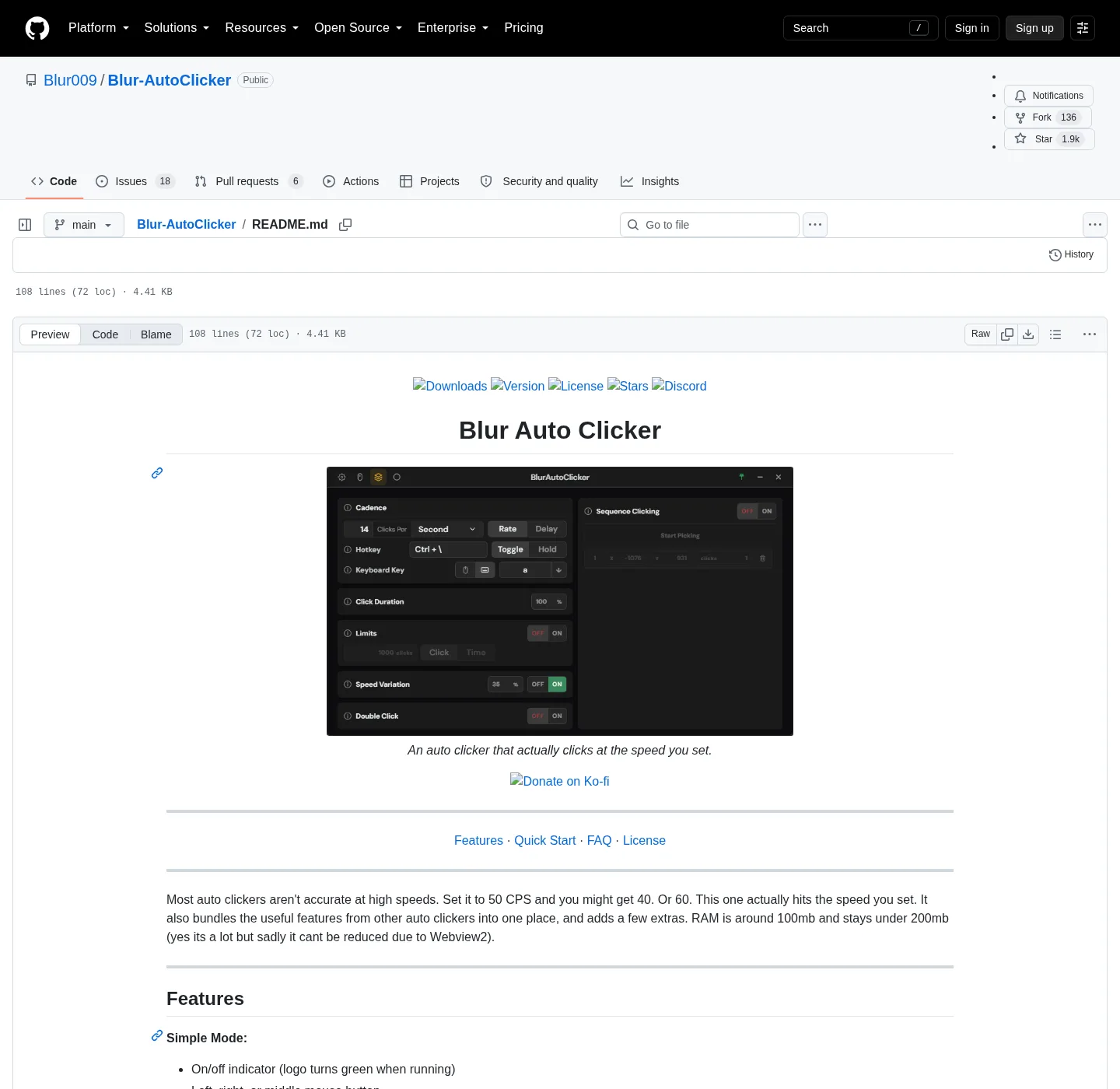
Blur Auto Clicker is a Windows auto clicker with a one-window UI: interval, mouse button or keyboard key, and a customizable hotkey. The maintained install path is Windows Package Manager. The README command is:
winget install -e --id Blur009.BlurAutoClicker --source winget --silentThat id is Blur009.BlurAutoClicker. The same identifier is in microsoft/winget-pkgs under manifests/b/Blur009/BlurAutoClicker. Installer type is Nullsoft, scope is user, and silent plus silentWithProgress are listed as install modes. Default location is %LocalAppData%\BlurAutoClicker. Related notes: winget auto clicker, auto clicker for this computer, and open source auto clicker on Windows.
Chris Titus Tech winutil maps blurautoclicker to the same winget id (community list, README links the winutil pull request). Treat that as a pointer at the same package, not a second vendor.
What Windows needs first
Winget ships with App Installer on Windows 10 version 1809 or later and on Windows 11. If winget is missing from Windows Terminal or PowerShell, install App Installer from Microsoft, sign out or reopen the terminal, and run the command again. Do not substitute a random package that only resembles the name. The exact id is Blur009.BlurAutoClicker and the source flag in the README is --source winget.
The desktop window uses WebView2. The README puts RAM around 100mb and under 200mb because of that runtime. If the process starts and no window appears, install Microsoft Edge WebView2 Runtime, then launch BlurAutoClicker.exe again. That is a missing runtime, not a failed winget transaction.
The current GitHub release lists an x64 setup exe. No ARM installer is on that tag. If you are on ARM hardware, check the GitHub repo and releases before you assume an extra asset exists.
GitHub setup exe as the other path
If you prefer a file from GitHub Releases, take the Windows x64 setup whose name matches BlurAutoClicker_*_x64-setup.exe. That is the Nullsoft installer winget already wraps. The portable alt is BlurAutoClicker-v*-portable.zip. Chooser: portable zip or setup exe. Current assets and hashes live on auto clicker releases.
Ignore *.sig and latest.json. Those are Tauri updater files, not something you run. A safe download walkthrough is on download an auto clicker safely.
Where files land on disk
| Item | Path or rule |
|---|---|
| Installed exe | %LocalAppData%\BlurAutoClicker\BlurAutoClicker.exe |
| Default install folder | %LocalAppData%\BlurAutoClicker |
| Config and stats | %AppData%\BlurAutoClicker |
| Winget package id | Blur009.BlurAutoClicker |
| Setup asset pattern | BlurAutoClicker_*_x64-setup.exe |
| Portable asset pattern | BlurAutoClicker-v*-portable.zip |
| Ignore on Releases | *.sig, latest.json |
| License | GPL-3.0 |
| Account | None |
After setup, the README install location is %localappdata%/BlurAutoClicker/BlurAutoClicker.exe. Config is not a cloud vault. Nothing in the README claims telemetry. Uninstall the winget or setup copy from Windows Settings > Apps, then delete leftover config in %AppData%\BlurAutoClicker if you want a clean slate.
Old v2.1.2 or below is a special case in the README: delete the old executable first, because the installer will not. Old configs will not open in v3+ and are deleted on first launch of the new app. If a Desktop copy from years ago is still sitting next to the new install, remove it before you chase duplicate hotkeys. Related: move leftover clicker exes.
First run and WebView2
Launch the exe. Simple mode covers left, right, or middle mouse button, keyboard key pressing with case control, hold or toggle activation, and customizable hotkeys. The logo turns green when the auto clicker is running. Advanced mode adds duty cycle, random CPS in a range, corner and edge stopping, click and time limits, double clicks, position clicking, and interval units per second, minute, hour, or day.
CPS is capped at about 500 in the README because Windows mouse events have a practical limit. A 1000 CPS setting exists and is not recommended. Set a stop hotkey before you test on a disposable window. The app sends clicks to the foreground window. It is not a game-cheat script, and this guide does not walk through that use.
Hold keeps the clicker active while the hotkey is down. Toggle flips running state on each press. Pick toggle if you need a free hand. Detail: auto clicker hotkeys. Interval units: auto clicker interval. Fixed screen point: position clicking.
Updates, uninstall, and old leftover copies
For the installed build, return to winget or to the current GitHub release. Say “the current release” rather than a pinned tag. Portable zips from source notes in BUILDING.md do not use in-app auto-update; you download a new zip from Releases. Installed copies follow the setup or winget channel you used.
To remove the app, use Settings > Apps for winget or setup, then optionally delete %AppData%\BlurAutoClicker. For a portable folder, close the exe and delete that folder. If GS Auto Clicker or another unsigned clicker is still on Desktop or Downloads, stop using those extra files and keep one official Blur copy. Switch notes: switch from GS Auto Clicker and Blur vs GS Auto Clicker.
Common Windows install mistakes
People grab the first search result named auto clicker and run an extra exe from a mirror. Stay on Blur009/Blur-AutoClicker, the current release, or winget id Blur009.BlurAutoClicker. The product homepage is autoclicker.blur009.com. License text is GPL-3.0.
SmartScreen Windows protected your PC is expected on an unsigned NSIS file. Read Microsoft Defender SmartScreen and windows-release-trust.md. Tauri updater signatures are not Authenticode. More: is this auto clicker safe and about. Build-from-source readers can start at BUILDING.md and the build guide. Keyboard-only clicking: keyboard auto clicker. Guide index: guides. Home install: auto clicker. GitHub overview: open source auto clicker on GitHub.
Install steps:
- Confirm App Installer on Windows 10 1809 or later, or Windows 11, so
wingetruns in Windows Terminal. - Run the official README command with id
Blur009.BlurAutoClickerand--source winget. - Launch
%LocalAppData%\BlurAutoClicker\BlurAutoClicker.exeafter WebView2 is present. - Set a customizable hotkey and choose hold or toggle before you send clicks to the foreground window.
Frequently asked questions
How do I install an auto clicker on Windows?
Run winget install -e --id Blur009.BlurAutoClicker --source winget --silent in Windows Terminal. That command is in the Blur Auto Clicker README and in microsoft/winget-pkgs. Related: winget auto clicker.
Does this auto clicker work on Windows 11?
Yes. The project is made for Windows. Winget needs App Installer on Windows 10 1809 or later, or Windows 11. The current GitHub release ships an x64 setup exe. No ARM installer is listed on that tag.
Where does the auto clicker install on disk?
The setup and winget path land in %LocalAppData%\BlurAutoClicker, with BlurAutoClicker.exe in that folder. Config and stats go in %AppData%\BlurAutoClicker. That layout is in the README and winget-pkgs installer metadata.
Why does Windows SmartScreen warn on the installer?
The installer is not Authenticode-signed. Microsoft explains that SmartScreen can warn on unsigned files. That warning is not a virus verdict. Read Microsoft SmartScreen and the repo windows-release-trust.md.
Do I need an account for this auto clicker?
No. Blur Auto Clicker is free under GPL-3.0 and does not ask for a login. Settings stay in %AppData%\BlurAutoClicker on the PC. Install from winget or GitHub Releases, then set interval, button, and hotkey in the window.