What GS Auto Clicker is
GS Auto Clicker is a Windows hotkey clicker listed as freeware on SourceForge. Research notes optional recorded positions and intervals on that product. Original Goldensoft hosting is discontinued. Fan mirrors exist. Treat SourceForge as the project listing, not a random domain that wraps the name.
Blur Auto Clicker is a different app: GPL-3.0, GitHub, winget id Blur009.BlurAutoClicker. Cluster comparison: vs GS Auto Clicker. This guide is the move: settings by hand, then leftover files off the PC.
Related: guides, auto clicker, move leftover clicker exes, download safely.
There is no settings importer
The Blur README does not document an import from GS, TinyTask, or other clicker files. There is no converter to invent. Migration copy is: export nothing. Open Blur after install. Type interval, button, and hotkey again. If GS stored points, re-create a point with position clicking only when that is actually the job.
Do not copy a GS ini or dat file into %AppData%\BlurAutoClicker. Old Blur v2 configs are a separate warning: they will not work with v3+ and are deleted on first launch. That note is about Blur’s own old files, not GS.
Re-enter interval, button, and hotkey
Write the GS values down while GS is still open: interval, left right or middle, hotkey, whether you used a fixed point. Close GS so two clickers do not share a hotkey.
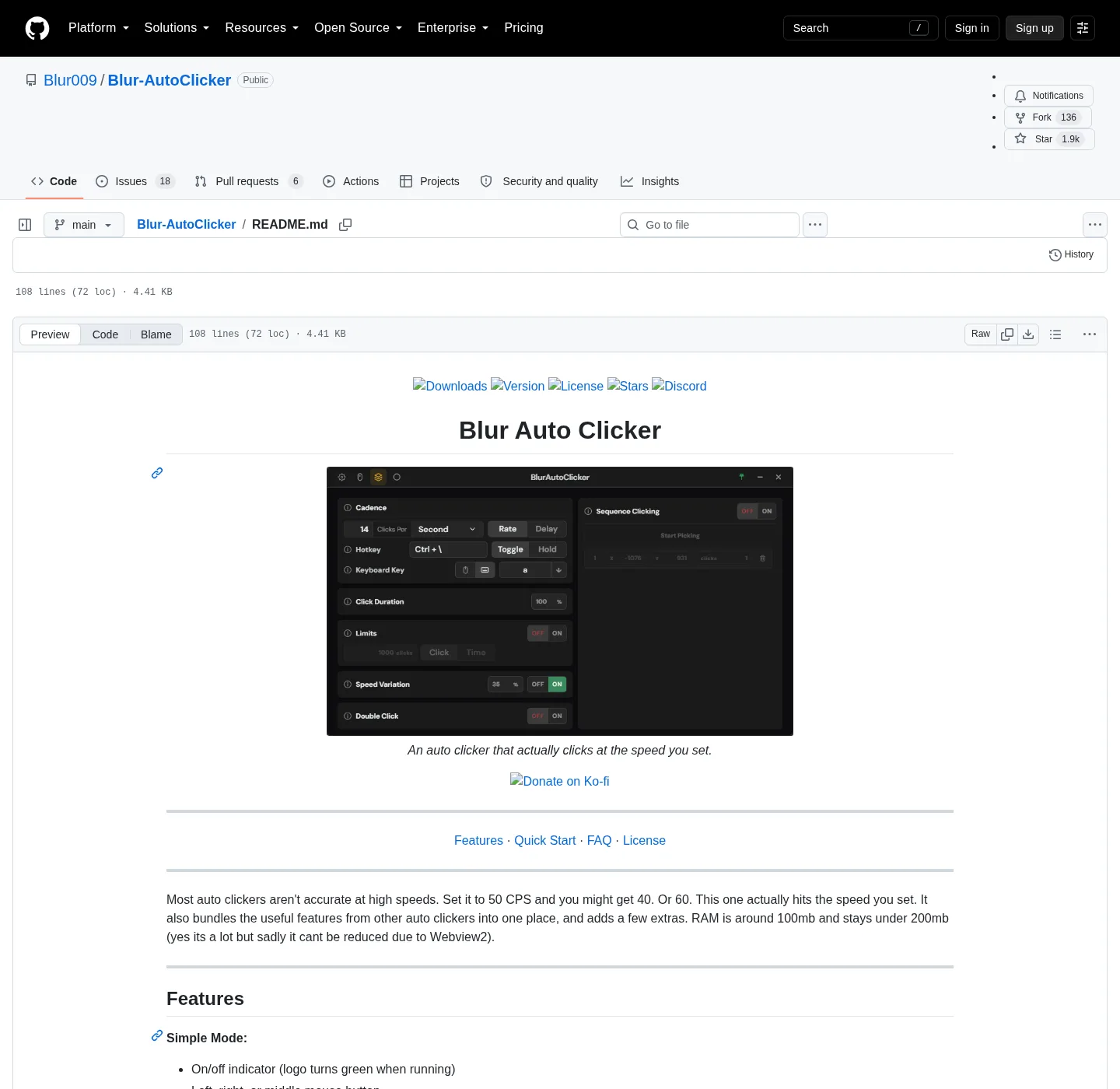
In Blur, simple mode covers button or keyboard key, hold or toggle, and customizable hotkeys. Advanced mode adds duty cycle, random CPS, edge stopping, limits, double clicks, position clicking, and per second, minute, hour, or day. README CPS cap is about 500. Interval help: auto clicker interval. Hotkeys: auto clicker hotkeys. Keyboard: keyboard auto clicker.
Clicks go to the foreground window. Set a stop hotkey before you test.
Remove leftover GS copies
Unsigned extra exes accumulate on Desktop and Downloads. After Blur works, close GS, then delete GS executables you no longer want. Empty Recycle Bin if you are done with them. Do not leave two auto clickers bound to the same key.
People also search wrapper freeware names as freeware. If that search left another exe next to GS, treat it the same: stop using the extra file, keep the official Blur copy from winget or GitHub. Broader cleanup: move leftover clicker exes.
Install Blur Auto Clicker
Use the README command:
winget install -e --id Blur009.BlurAutoClicker --source winget --silentApp Installer on Windows 10 1809+ or Windows 11 provides winget. Alternative files: x64 setup exe or portable zip on GitHub Releases. Ignore .sig and latest.json. Setup vs zip: portable or setup. Winget detail: winget auto clicker. Windows: install on Windows. This computer: auto clicker for this computer.
| Step | GS Auto Clicker | Blur Auto Clicker |
|---|---|---|
| Where it lives today | SourceForge freeware listing | GitHub and winget |
| Settings file to import | None to Blur | Re-enter in the UI |
| Interval | Set again by hand | Per second through per day |
| Hotkey | Set again by hand | Customizable, hold or toggle |
| Fixed point | Re-create only if needed | Position clicking in advanced mode |
| Leftover exe | Delete from Desktop/Downloads | Keep one official copy |
| License | Freeware listing | GPL-3.0 |
| Account | None typical for GS freeware | None |
| SmartScreen on Blur setup | n/a | Unsigned, not a virus verdict |
| Config folder after switch | Remove old GS folder if you want | %AppData%\BlurAutoClicker |
First run checks
Launch %LocalAppData%\BlurAutoClicker\BlurAutoClicker.exe. WebView2 must be present. RAM around 100mb and under 200mb per the README. Logo turns green when running. If an old Blur v2.1.2 or below exe is also on disk, delete it first; the installer will not.
SmartScreen may warn on the unsigned NSIS file. Microsoft SmartScreen and windows-release-trust.md. Safe install: is this auto clicker safe. Releases: auto clicker releases. GitHub: open source auto clicker on GitHub. Windows cluster: open source auto clicker on Windows. About: about. Other compares: vs TinyTask, vs AutoHotkey, vs MurGee.
If you also used other freeware clickers
GS is the named source here. The same hand-entry rule applies to other leftover GUI clickers. No import. One official Blur install. TinyTask recordings are a different tool (macros, not CPS); only move if the job is actually repeated clicks: auto clicker vs TinyTask.
License: GPL-3.0. README: Blur Auto Clicker README. Product home: autoclicker.blur009.com.
Keyboard, position, and interval after the switch
If GS was repeating a key rather than a mouse button, use keyboard key pressing with case control in Blur: keyboard auto clicker. If GS used a fixed point, re-pick it with position clicking rather than hoping a file imports: position clicking. Interval units per second through per day, with a README cap around 500, sit on auto clicker interval.
Blur is GPL-3.0. Product home: autoclicker.blur009.com. Build from source if you want to compile: BUILDING.md and build from source. TinyTask recordings remain a different tool: vs TinyTask. AutoHotkey scripts remain scripts: vs AutoHotkey.
Write the three values down first
Before you uninstall the old freeware build, write interval, mouse button or key, and hotkey on paper or in a note. That list is the whole move. There is no settings file these notes can name, and inventing a converter would be a guess. After winget or the GitHub setup lands, type those three values again, pick hold or toggle on purpose, then test on a throwaway window. Close the old process so two hotkeys do not share one key. Desktop and Downloads copies of the old exe belong in the recycle bin once the new hotkey works. SourceForge remains the catalog listing for that freeware name. Fan mirrors exist. Original Goldensoft hosting is discontinued. Fetch the replacement only from GitHub Releases or from the README winget id.
Switch steps:
- Note interval, mouse button, and hotkey from GS Auto Clicker; there is no import file.
- Run the official winget command or take the x64 setup from GitHub Releases.
- Set the same interval, button, and hotkey in the Blur window, then choose hold or toggle.
- Close GS and delete leftover GS executables from Desktop, Downloads, and old folders.
Frequently asked questions
Can I import GS settings into Blur?
No. The Blur README does not document an import from GS files. Re-enter interval, button, and hotkey in Blur Auto Clicker. Do not hunt a converter. Related: vs GS Auto Clicker.
Where is the official GS Auto Clicker download?
GS is advertised as freeware on SourceForge. Original Goldensoft hosting is discontinued. Fan mirrors exist. Do not treat a random gsautoclicker.net-style mirror as the vendor.
How do I switch from GS to Blur?
Note your GS interval and hotkey on paper, install Blur with winget id Blur009.BlurAutoClicker, enter those values again, then remove leftover GS exes from Desktop and Downloads. Guide: move leftover exes.
Is GS Auto Clicker open source?
GS is freeware listings, not this GPL-3.0 project. Blur Auto Clicker source is on GitHub under GPL-3.0. Those are two different products. Clicker license: GPL-3.0.
What about other freeware clicker names?
People also search wrapper freeware names and similar leftover names. Do not collect extra unsigned exes from those searches. Install Blur from winget or GitHub, then keep one official copy. Safe path: download safely.