Auto clicker, free and open source
An auto clicker is a program that repeats mouse or keyboard input at a set interval so you do not have to sit there tapping. Blur Auto Clicker is the Windows project these notes install; Run the official winget command with id Blur009.BlurAutoClicker, or take the x64 setup from GitHub Releases, where the files stay.
- Windows. GPL-3.0. Blur Auto Clicker.
- One winget command, or the setup exe / portable zip
- Source and installers come straight from GitHub
By Auto Clicker editorial team Current release Blur Auto Clicker 3.9.6, published August 24, 2026
Install Blur Auto Clicker 3.9.6
Windows
Paste into PowerShell or Windows Terminal:
winget install -e --id Blur009.BlurAutoClicker --source winget --silentPackage: Official README https://github.com/Blur009/Blur-AutoClicker/blob/main/README.md quoting that command; winget-pkgs manifests/b/Blur009/BlurAutoClicker. Verified 2026-09-02..
Or download the file directly from the official GitHub release:
Download Windows x64 setupAlso on this release: Portable zip
Windows. WebView2 (README RAM note). App Installer for winget. Installs to %LocalAppData%\BlurAutoClicker. Config in %AppData%\BlurAutoClicker. Installer is not Authenticode-signed; SmartScreen may warn.
Every link above points at Blur009/Blur-AutoClicker v3.9.6 on GitHub. This site does not host or modify any file.
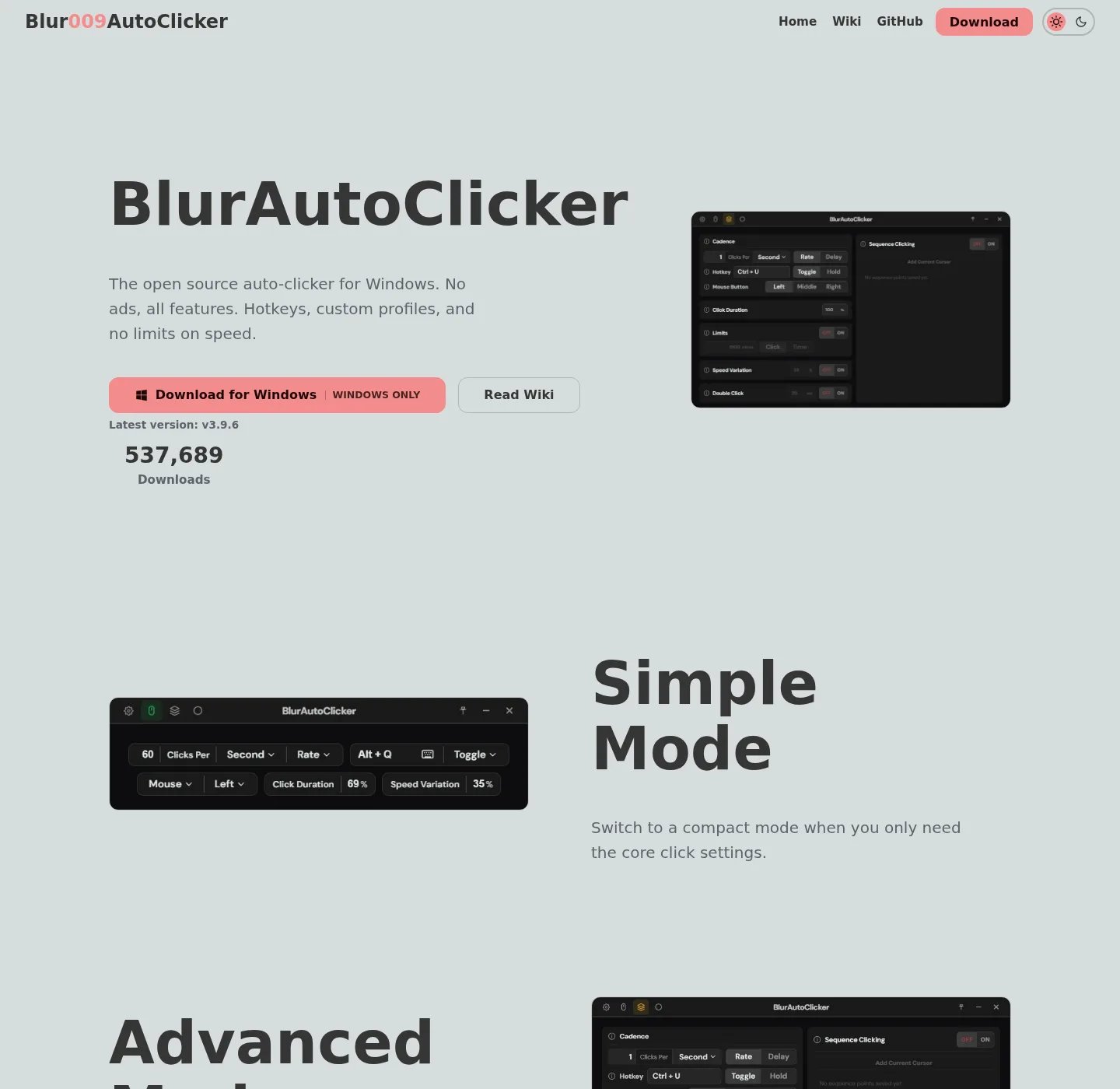
This auto clicker is published by Blur009 as Blur009/Blur-AutoClicker, with a Windows homepage at autoclicker.blur009.com. Source, LICENSE, and README live on that repo, and Releases hold the x64 setup plus the portable zip. The same product is in Windows Package Manager as Blur009.BlurAutoClicker, and safe fetch rules sit on the download-safe notes, and repo layout sits on the GitHub notes.
What is an auto clicker
An auto clicker is software you install and run, rather than a website that takes a remote job and sends input from a server. The auto clicker sits on the PC, watches a hotkey or a hold gesture, and then sends mouse buttons or keyboard keys to the foreground window at the interval you set. People pick one when a task is already theirs and the motion is small: the same button, the same key, or a fixed point on screen, for a stretch they would rather not tap by hand.
This auto clicker fills that role, and the README lists a mouse clicker for left, right, or middle, keyboard key pressing with case control, customizable hotkeys, hold or toggle activation, and an interval as clicks per second, minute, hour, or day. Advanced controls add duty cycle, a random CPS range, corner or edge stop, click and time limits, double clicks, and position clicking. Statistics stay in local files, and there is no account to create before the first click.
The official about text on the repo says this auto clicker is made for Windows. The documented runtime is WebView2, with RAM around 100 MB and a note that usage stays under 200 MB because of that runtime. There is no official macOS, Linux, or phone package in the README, and if a search result offers a brew, snap, or apk path for this name, it is not the install these notes map. Windows setup is spelled out on the Windows install notes.
How an auto clicker sends clicks on Windows
The auto clicker sends input to the window in front, on the machine you already control. Simple mode is the daily path: pick a mouse button or a keyboard key, set a rate, bind a hotkey, then choose hold or toggle. Hold fires while the hotkey is down, and toggle starts on one press and stops on the next, which is the whole loop for most jobs. Keyboard detail, including case control, is on the keyboard notes.
An auto clicker interval is not only a raw CPS number, and you can count per second, per minute, per hour, or per day, which is how a slow periodic click differs from a fast burst. Duty cycle on this auto clicker shapes how long the button stays down inside each click; Random CPS draws a rate from a range so the timing is not a flat metronome. The project homepage is explicit that speed variation does not save anyone from a game ban, and that this is not a tool for cheating in videogames. These notes describe foreground clicks, not a game workaround.
Advanced mode on this auto clicker adds limits and geometry, so a run can stop after a count or a duration instead of going forever. Double clicks on this auto clicker fire two presses per step, and position clicking aims at a fixed screen point instead of the cursor. Edge or corner stop ends the run if the pointer hits a screen edge, which is the fast off switch when a window is not the one you wanted. Sequence and click-point notes live in the project homepage and in release notes; delay between separate click points is a GitHub feature request, not a shipped README claim. How-tos for interval and coordinates sit on the interval guide and the position-click guide.
Why this auto clicker on Windows
Four facts decide this auto clicker for a Windows click job, each with a source you can open.
The license is GNU GPL-3.0, with a LICENSE file that is the FSF GPL v3 text, GitHub reporting GPL-3.0, and the winget locale yaml pointing at that LICENSE. You can read the auto clicker code, build from source using BUILDING.md, and keep using the app without a paid seat. There is no paid tier in the README.
The Windows command for this auto clicker is the line the README quotes: winget install -e --id Blur009.BlurAutoClicker --source winget --silent. The microsoft/winget-pkgs manifest uses PackageIdentifier Blur009.BlurAutoClicker, installer type nullsoft, user scope, and default install location %LocalAppData%\BlurAutoClicker. A package id Microsoft already tracks is easier to fetch than a wrapped setup from a download portal. Full winget notes sit on the winget guide.
Official auto clicker files live on GitHub Releases, with setup pattern BlurAutoClicker_*_x64-setup.exe and portable pattern BlurAutoClicker-v*-portable.zip. Ignore *.sig and latest.json; those are Tauri updater sidecars, not the app you run. Which file to take is on the releases notes.
Auto clicker config and stats sit in %AppData%\BlurAutoClicker, and the launched exe after setup is %LocalAppData%\BlurAutoClicker\BlurAutoClicker.exe. Nothing in the README describes a cloud account or a telemetry product, and local paths and WebView2 notes are on setup for this computer.
Install command for this auto clicker
One install path covers this auto clicker on a PC you administer: Windows 10 1809 or later, or Windows 11, with App Installer providing winget. The README command is the line to paste into PowerShell or Windows Terminal; GitHub Releases is the file host if you would rather run the setup exe or unpack the portable zip. There is no brew, snap, flatpak, apt, or Docker auto clicker install in the official README, and these notes do not mint those URLs.
winget install -e --id Blur009.BlurAutoClicker --source winget --silentWindows auto clicker walkthroughs sit on the Windows install guide and portable versus setup, and if App Installer is missing, get it from Microsoft App Installer, then run the same command. Chris Titus Tech winutil maps blurautoclicker to the same winget id; that is a community list pointing at the README package, not a second vendor. The current release is the GitHub tag, injected on the stamp, not a number typed into a blog.
How to install an auto clicker in six steps
Install an auto clicker on one Windows PC you control, then try a slow interval on a throwaway window before a real job. Follow the auto clicker list on the machine in front of you, and mixing winget with a second setup exe from a browser download is how two copies fight over the same hotkey.
Showing steps for Windows. Switch:
- Open a terminal. On Windows open PowerShell or Windows Terminal on the PC that will send the clicks.
- Paste the winget command. Run
winget install -e --id Blur009.BlurAutoClicker --source winget --silentand approve the installer prompt. - Fix winget if it is missing. Install App Installer from Microsoft, then run the same command again.
- Launch the desktop app. Open it from the Start menu, and the documented path is
%LocalAppData%\BlurAutoClicker\BlurAutoClicker.exe. - Handle SmartScreen and WebView2. The installer is not Authenticode-signed, so SmartScreen may show Windows protected your PC. That is unsigned reputation, described in windows-release-trust.md, and if a process starts and no window appears, install Microsoft Edge WebView2, then launch again.
- Bind a hotkey and test slowly. Pick left click, set a low rate, use toggle, and confirm the foreground window receives clicks. Stop with the hotkey or by hitting a screen edge if edge stop is on.
For the longer auto clicker machine chooser, read setup for this computer, and current files sit on the releases notes.
First hour with an auto clicker
The first hour with an auto clicker is one real job on a window you can waste, not a tour of every control. Pick left, right, or middle, then set an interval you can see, such as a few clicks per second, not a thousand. Bind a hotkey you will remember, then choose hold or toggle; Hold is safer when you want the run to die the moment you lift the key, and toggle is better when you need both hands on something else. Hotkey steps sit on the hotkeys guide.
If the auto clicker job is a key instead of a mouse button, switch to keyboard mode and set case the way the README describes. If the job is a pixel that never moves, use position clicking rather than hoping the cursor stays put. If you only need a recorded mouse path, you may want a macro tool instead; TinyTask is that kind of recorder, compared on the TinyTask comparison. Scripts that branch belong in AutoHotkey, compared on the AutoHotkey comparison.
Keep originals of anything the auto clicker clicks through, and the auto clicker can minimize to the tray, and the homepage lists a start-with-Windows option. Duplicate tray icons have shown up in GitHub issue threads, so restart the app if you see two. Click statistics stay locally under AppData; Default CPS is capped at 500 in the project FAQ, and settings can raise the cap to 1000. That is a product limit, not a promise that every game or form will accept it.
How to choose auto clicker setup or portable
Choose the NSIS setup exe when this PC should keep the auto clicker in LocalAppData and receive the project updater. Winget installs that same setup; Choose the portable zip when you want a folder you unpack, copy, or run from a USB stick. Portable mode, documented in release notes and BUILDING.md, means a portable.txt file next to the exe with the exact content BlurAutoClicker Portable Mode. Settings, statistics, diagnostics, and WebView2 user data then live in a Data/ folder beside the exe. Portable has no in-app auto-update, so you download the next zip from GitHub Releases.
The architecture on the current GitHub release set is x64, and there is no ARM installer listed on that tag, so treat the x64 setup as the default Windows file. Do not grab auto clicker latest.json or a .sig file and try to run them, because those belong to the Tauri updater, not to Explorer. A side-by-side chooser is portable or setup.
Older auto clicker configs from version 2 do not open in version 3, and the README says to delete the old executable first, and old configs are deleted on first launch of version 3. If you still have a version 2 exe on the Desktop, stop using it and install from winget or GitHub, then re-enter interval and hotkey. Moving off extra executables is on the extra-exe notes.
Compared with other auto clicker tools
A four-way auto clicker view is about source, install, and what the tool actually sends, not a rank. GS is freeware on SourceForge; TinyTask is a tiny recorder; AutoHotkey is a scripting language. MurGee sells a Windows clicker after a short trial, and the GPL-3.0 project these notes install is the one with a public repo and a winget id. Competitor prices below were checked on 2026-09-02; open each vendor page before you budget.
| Topic | This project | GS | TinyTask | AutoHotkey |
|---|---|---|---|---|
| Where clicks are sent | Foreground window on your Windows PC | Desktop clicker on Windows | Recorded path replay | Whatever your script sends |
| Account to start | None | None typical for the freeware build | None | None |
| Public source repo | Blur009/Blur-AutoClicker, GPL-3.0 | No public OSS repo as the product model | No | Yes, at autohotkey.com |
| Install path these notes map | winget id Blur009.BlurAutoClicker, or GitHub setup / zip | SourceForge project files | Portable download at tinytask.net | Installer from autohotkey.com |
| Keyboard key repeat | Yes, with case control | Hotkey clicker; check the build you fetched | Replay, not a CPS keyer | Yes, if you write it |
| Free tier (vendor pages) | Free, no paid tier in the README | Freeware listing on SourceForge | Free for personal use | Free |
GS Auto Clicker is the incumbent already compared on the GS comparison, and use the SourceForge project at sourceforge.net/projects/gsautoclicker as the catalog listing. Fan mirrors exist; Goldensoft hosting is discontinued, and a random dot-net mirror is not the vendor. TinyTask at tinytask.net is a 36 KB recorder, not a CPS clicker; AutoHotkey lives at autohotkey.com. MurGee Auto Clicker at murgee.com/auto-clicker is a 20-use trial, then about USD 6.54 to unlock one Windows PC for up to six months, and it needs admin. Compare MurGee on the MurGee comparison, and switching from GS settings is on the GS switch guide.
Free under GPL-3.0
The free path for this auto clicker is the one most people run: the winget package or the GitHub setup, GPL-3.0, no seat count in the README. That is not a trial clock; MurGee is the paid contrast in this cluster, with a short trial and a per-PC unlock on the vendor page. AutoHotkey is free and open source as a language; GS is advertised as freeware on SourceForge. TinyTask is free for personal use on its site, and the current auto clicker tag comes from GitHub Releases and is injected on the stamp.
GPL-3.0 means you can run, study, share, and modify under the license terms, and building from source is documented in BUILDING.md for x86_64-pc-windows-msvc. That auto clicker walkthrough is the from-source guide, and describe the product by name, and trademark questions belong on the project repo. Publisher notes live on about.
Common auto clicker mistakes
The expensive mistakes with an auto clicker are almost always fetch, duplicates, and old folders. Take the auto clicker setup or the zip from GitHub Releases or from winget, not from Softonic, CNET, or a search-ad wrapper that uses the project name. The safety checklist is the safety guide and the download-safe notes, and do not run latest.json or a .sig file. Do not treat an unofficial AI-made macOS port as an official package; GitHub issue 285 is open, and the author says it is not endorsed.
If both a portable auto clicker folder and a winget install are running, pick one for the job in front of you. If SmartScreen appears, read the project trust doc rather than fetching a verified-looking exe from some other domain. If you still have a version 2 exe, delete it before the version 3 install so old configs are not a surprise. A borrowed laptop that blocks winget is a bad target unless you use the setup exe from GitHub. The current release is the GitHub tag, not a third-party mirror.
Auto clicker guides and next steps
Auto clicker how-tos sit on the guides hub, including Windows install, winget, portable or setup, and comparisons with TinyTask, AutoHotkey, and MurGee. Keyboard work lives on the keyboard notes; Repo layout lives on the GitHub notes. Editorial practice is on editorial policy, and privacy, contact, and ads notes are on privacy, contact, and advertising disclosure.
Frequently asked questions
How do I install an auto clicker?
On Windows, paste winget install -e --id Blur009.BlurAutoClicker --source winget --silent into Terminal or PowerShell, or take BlurAutoClicker_*_x64-setup.exe from GitHub Releases and install to LocalAppData. For a folder you unpack, take the portable zip on the same tag and add portable.txt as the project documents. Then bind a hotkey and test on a throwaway window.
What is the winget command for this auto clicker?
The command is winget install -e --id Blur009.BlurAutoClicker --source winget --silent, and App Installer from Microsoft usually already provides winget on current Windows. If the command is missing, install App Installer from Microsoft, then paste the same line again. That is the README command, also reflected in microsoft/winget-pkgs.
Is this auto clicker open source?
Yes, and the repo is Blur009/Blur-AutoClicker under GNU GPL-3.0, and you can read LICENSE, follow BUILDING.md, and inspect every release asset on GitHub. Winget id Blur009.BlurAutoClicker is the same Windows product, and there is no paid tier in the README.
Where do I download an auto clicker safely?
Use GitHub Releases for Blur009/Blur-AutoClicker, or winget with that package id, and match BlurAutoClicker_*_x64-setup.exe or BlurAutoClicker-v*-portable.zip. Skip Softonic, CNET, and lookalike portals, and longer fetch rules sit on the download-safe notes.
Why does Windows SmartScreen warn on an auto clicker?
The installer is not Authenticode-signed, so SmartScreen may show Windows protected your PC, and the project trust doc says that warning is unsigned reputation, not a virus verdict. Tauri updater signatures on .sig files are not Authenticode, and fetch still has to come from GitHub or winget.
Can an auto clicker press a keyboard key?
Yes, and the README lists keyboard key pressing with case control, the same hold or toggle model, and customizable hotkeys. Pick the key in the app after install, and steps sit on the keyboard notes. Mouse wheel scrolling is a feature request, not a README claim.
Does an auto clicker need an account?
No; README install and run steps never ask for a login; Config and stats stay in %AppData%\BlurAutoClicker, or in the portable Data/ folder. The homepage says statistics are stored locally, and you do not create a cloud user to send a click.
Where does the auto clicker install on disk?
Setup and winget land in %LocalAppData%\BlurAutoClicker, with the exe at BlurAutoClicker.exe in that folder. Config and stats go to %AppData%\BlurAutoClicker; Portable keeps its data next to the exe after you add portable.txt. Uninstall with Apps settings or winget uninstall Blur009.BlurAutoClicker, then delete those folders if you want a clean slate.