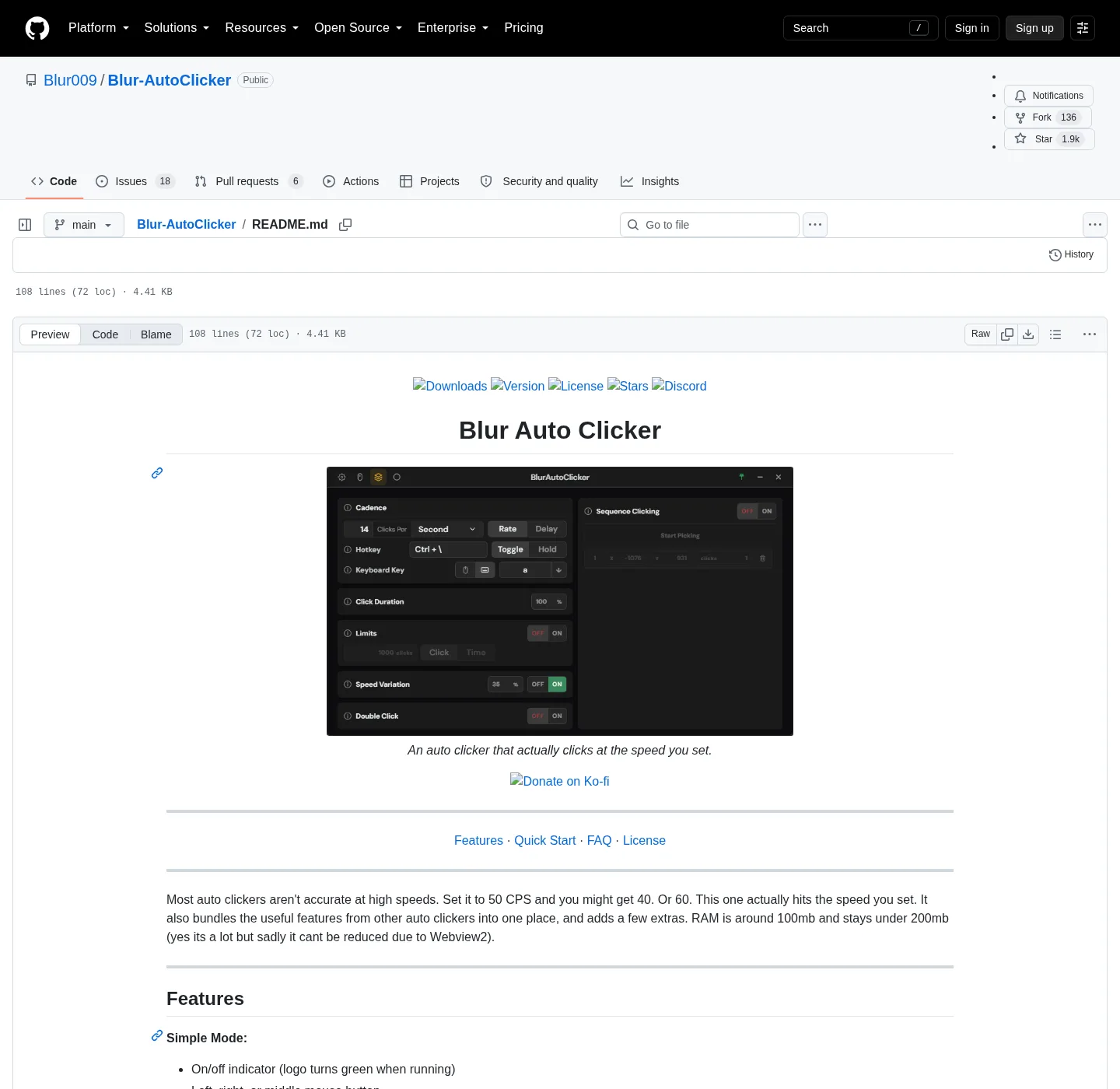
The README lists keyboard key pressing with case control as a simple-mode feature, next to left, right, or middle mouse. That is the job this URL covers, and mouse interval and position clicking are separate how-tos. Install first from home or Windows, and hotkeys in general sit on the hotkeys guide.
What keyboard mode does
The app sends the chosen key to the foreground window, on a cadence you set as clicks per second, minute, hour, or day. Case control is in that README line: you can aim for a shifted or unshifted character the way the UI exposes it, rather than hoping Caps Lock is in the right state. Hold keeps sending while the activation key is down; Toggle starts on one press and stops on the next. Customizable hotkeys are the start and stop, not the character being repeated.
This is not AutoHotkey, and you are not writing a script that branches on window title. If the job is a real macro language, compare that tool on the AutoHotkey comparison. If the job is a recorded mouse path, TinyTask is the recorder, compared on the TinyTask comparison. Keyboard repeat here is one key, on a timer, into whatever is focused.
Install, then pick a key
Use the README winget command, or take the x64 setup from GitHub Releases; Launch from Start or from %LocalAppData%\BlurAutoClicker\BlurAutoClicker.exe. Switch the clicker from a mouse button to keyboard key pressing; Choose the key. Set case; Bind a hotkey you will not hit by accident, then pick hold or toggle. Set a slow interval first, and focus Notepad or another throwaway window, then start. Stop with the same hotkey, or by hitting a screen edge if edge stop is on.
winget install -e --id Blur009.BlurAutoClicker --source winget --silent| Control | What to set | Source |
|---|---|---|
| Input kind | Keyboard key pressing, not left, right, or middle mouse | README simple mode |
| Case | Case control as the app exposes it | README |
| Activation | Hold or toggle | README |
| Hotkey | Customizable start and stop | README |
| Interval | Per second, minute, hour, or day | README |
| Limits | Click count or time, if you want a hard stop | README advanced |
Hold, toggle, and a fast off switch
Hold is the safer first test, because lifting the activation key ends the stream. Toggle is better when both hands are busy, as long as you remember the stop press. Edge or corner stop is the panic switch if the wrong window grabbed focus. Click limits and time limits are the planned stop when you know how many keys you wanted. Duty cycle and random CPS still apply; they shape timing, not which character is sent.
GitHub issue 265 asks about holding a keyboard key, not only clicking it, and that is an issue title, not a README claim, so these notes do not promise key-down hold as a shipped mode. Mouse-wheel scrolling is issue 218, also a request, and two hotkeys for two buttons is issue 211. Stick to what README lists until that text changes.
What this will not do
It sends keys to the foreground window, and it does not log into a site for you, and it does not read the screen. Speed variation does not save anyone from a game ban; the project homepage is explicit that this is not a tool for cheating in videogames. These notes describe a key repeat for a window you already own, and if antivirus heuristics flag a clicker, that is a known homepage FAQ, not a reason to fetch a wrapped copy from Softonic. Fetch from GitHub or winget, as download safely describes.
Position clicking is for a mouse coordinate, not a key, and interval detail is on the interval guide. Building your own binary is on from source.
First hour with a key
Pick a letter you can see in Notepad, and set a rate of a few per second. Use hold, and watch the caret, and if case is wrong, change case control, not the OS Caps Lock as your only lever. If nothing appears, confirm the Notepad window is focused and that you are in keyboard mode, not left click. If the app itself is focused, you may be typing into the clicker; click the target first. Then raise the rate only as far as the job needs, with the default cap at 500 CPS and a settings ceiling of 1000 per the project FAQ.
Guides hub: guides, and repo: GitHub.
Frequently asked questions
Can an auto clicker press a keyboard key?
Yes; README simple mode lists keyboard key pressing with case control, customizable hotkeys, and hold or toggle. Pick the key after install, and mouse buttons stay available in the same app.
How do I set case on a keyboard auto clicker?
Use the case control the README names, in the app, rather than guessing from Caps Lock alone. Test in a text field you can delete, and if the character is wrong, change that control and try again at a slow interval.
Should I use hold or toggle for a key?
Hold for the first test, because the stream stops when you lift; Toggle when you need both hands elsewhere and you trust the stop hotkey. Edge stop is the extra brake if focus moves.
Can it hold a key down instead of repeating clicks?
GitHub issue 265 asks for hold-key behavior; README documents key pressing with case control, not that issue as a shipped feature. Treat repeat-at-interval as the documented path until README says otherwise.
Does keyboard mode need a different installer?
No, and same Windows app, same winget id, same GitHub setup; Keyboard mode is a control in the installed program, not a second download.