Two tools, two jobs
TinyTask vs this auto clicker is a job split, not a ranking. TinyTask records mouse and keyboard actions and plays them back. Blur Auto Clicker repeats clicks at a rate you set, with a hotkey, in one window. People type both names when they want Windows to click for them. One of those jobs is a macro. The other is CPS.
Official clicker files stay on GitHub Releases and winget id Blur009.BlurAutoClicker. TinyTask files stay on tinytask.net. Related: guides, auto clicker, vs GS Auto Clicker, and auto clicker vs AutoHotkey.
TinyTask is a recorder
TinyTask markets itself as a small portable recorder: press record, then play. Vendor copy on tinytask.net describes automation without scripting, a tiny exe, and playback of what you performed. That includes mouse movement and keystrokes as recorded. Playback speed options exist on that product. It is still a recording of a path, not a CPS field you type.
Use TinyTask when the task is a sequence: move, click, type, click somewhere else. A CPS clicker will not replay that path. Do not expect Blur Auto Clicker to open a TinyTask recording. The Blur README does not document an import from TinyTask files, and this guide does not invent a converter.
This auto clicker is a CPS clicker
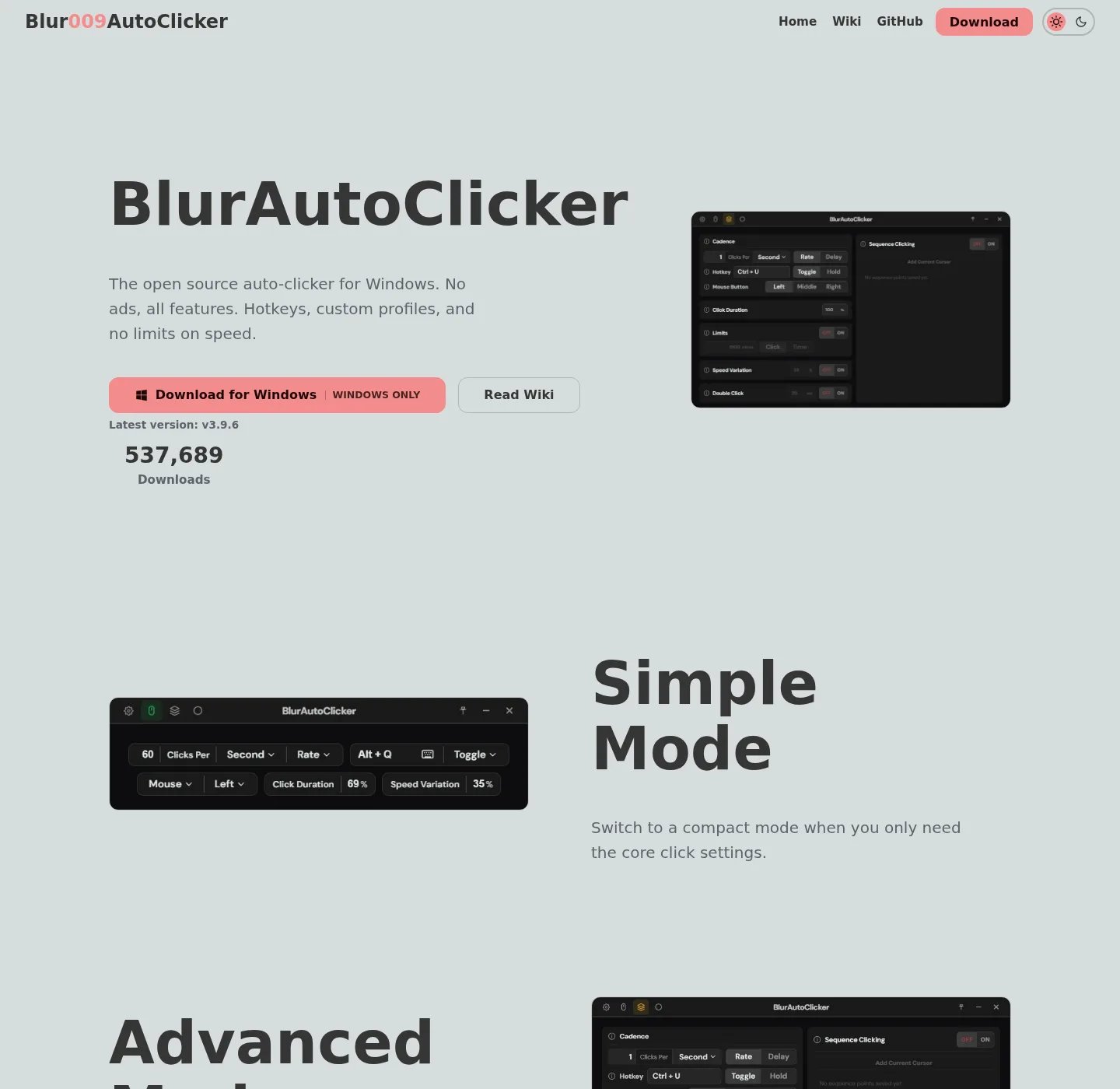
Blur Auto Clicker is made for Windows. Simple mode: left, right, or middle button, keyboard key with case control, hold or toggle, customizable hotkeys, and a logo that turns green while running. Advanced mode: duty cycle, random CPS in a range, corner and edge stopping, click and time limits, double clicks, position clicking, and interval units per second, minute, hour, or day. README CPS cap is about 500. A 1000 CPS setting exists and is not recommended.
Position clicking picks a spot and moves the mouse there. That is still a clicker feature, not a full macro recorder. Interval guide: auto clicker interval. Position: position clicking. Hotkeys: auto clicker hotkeys.
License is GPL-3.0. No account. Config in %AppData%\BlurAutoClicker for the installed app. Install:
winget install -e --id Blur009.BlurAutoClicker --source winget --silentFeature table
| Feature | Blur Auto Clicker | TinyTask |
|---|---|---|
| Job | CPS interval clicker | Record and replay macros |
| Vendor page | GitHub repo | tinytask.net |
| License | GPL-3.0 | Free portable product on the vendor site |
| Open source | Yes, GitHub | Not this clicker’s repo |
| Interval field | Per second, minute, hour, or day | Playback of recorded timing |
| Mouse buttons | Left, right, middle | As recorded |
| Keyboard | Key pressing with case control | Recorded keystrokes |
| Hold vs toggle | Yes | Record and play |
| Position click | Pick a spot in advanced mode | Path as recorded |
| Import from the other tool | None documented | None documented |
| Windows install | Winget or GitHub setup/zip | Portable download on tinytask.net |
| Account | None | None claimed on the vendor page |
People also search other freeware clicker names, including leftover wrapper names, when they want a CPS tool. Treat those searches as leftover names. Stay on Blur GitHub or winget for this auto clicker, and on tinytask.net for TinyTask.
When to keep TinyTask
Keep TinyTask when the work is a recorded path, compile-to-exe macros as that vendor describes, or a tiny portable recorder with no CPS form. If you already have a TinyTask recording that moves between controls, a clicker will not replace it. Read tinytask.net for that product. Do not migrate a recording into Blur.
If you only recorded TinyTask because search results mixed “auto clicker” with recorders, replay the recording once, decide whether the job is actually repeated clicks at one rate, and only then switch.
When to switch
Switch to Blur Auto Clicker when you need a set CPS, optional random CPS, click or time limits, edge stopping, or a hotkey that starts interval clicking on the foreground window. Re-enter interval, button, and hotkey. Export nothing. Delete leftover unsigned copies from Desktop and Downloads if they were extra clicker exes, not your TinyTask recorder. Cleanup: move leftover clicker exes. GS freeware: switch from GS Auto Clicker. MurGee trial: auto clicker vs MurGee.
How to install the clicker
Use winget on Windows 10 1809+ or Windows 11, or take BlurAutoClicker_*_x64-setup.exe from Releases. Ignore .sig and latest.json. Portable zip is the other official file: portable or setup. Releases list: auto clicker releases. Safe download: download safely. GitHub: open source auto clicker on GitHub. Windows notes: open source auto clicker on Windows. Keyboard: keyboard auto clicker. This computer: auto clicker for this computer. About: about.
SmartScreen may warn; the setup is not Authenticode-signed. Microsoft: SmartScreen. Repo: windows-release-trust.md.
License, SmartScreen, and leftover copies
Blur Auto Clicker is GPL-3.0. TinyTask licensing sits on tinytask.net. Keep those licenses separate. The Blur setup is not Authenticode-signed, so SmartScreen may warn. That is an unsigned-file warning: Microsoft SmartScreen and windows-release-trust.md.
If Desktop holds both a TinyTask recorder and extra unsigned clicker exes, keep TinyTask only if you still need recordings. Remove extra clicker copies after the official Blur install. Config for the installed clicker is %AppData%\BlurAutoClicker. No account. RAM around 100mb and under 200mb per the README because of WebView2.
Build-from-source readers: BUILDING.md and build from source. Product home: autoclicker.blur009.com. Interval units, hold versus toggle, and position clicking stay in the clicker window. TinyTask keeps recordings. Pick one job and one official download host. The clicker sends clicks to the foreground window after you set a hotkey.
Frequently asked questions
Is TinyTask an auto clicker?
TinyTask is a record and replay macro tool on tinytask.net. It can replay clicks you recorded. It is not a CPS interval auto clicker. Blur Auto Clicker sets rate, button, and hotkey in one window.
Can I import TinyTask recordings into this auto clicker?
No. Blur Auto Clicker does not document an import from TinyTask files. Re-enter interval, button, and hotkey if the job is actually repeated clicks. Keep TinyTask when you still need a recorded path.
Which should I use for repeated clicks?
Use Blur Auto Clicker when you want per-second through per-day intervals, left right or middle button, keyboard key, hold or toggle, and optional position clicking. Use TinyTask when you need to record a sequence and play it back.
Is TinyTask open source like this auto clicker?
Blur Auto Clicker is GPL-3.0 on GitHub. TinyTask is free portable software on tinytask.net; treat that site as the vendor page for that product. Do not mix the two licenses. Clicker license: GPL-3.0.
How do I install the auto clicker instead of TinyTask?
Run winget install -e --id Blur009.BlurAutoClicker --source winget --silent or take the x64 setup from GitHub Releases, then set a hotkey. Guide: install on Windows.