GUI clicker versus a scripting language
AutoHotkey vs this auto clicker is a shape split. AutoHotkey is a language: you write a script, run it, and Windows does what the script says. Blur Auto Clicker is a window: interval, mouse button or keyboard key, hotkey, optional advanced limits. Both can send clicks. Only one of them is a CPS form.
Official clicker command:
winget install -e --id Blur009.BlurAutoClicker --source winget --silentRelated: vs TinyTask, vs MurGee, vs GS, guides, and home.
What AutoHotkey is
AutoHotkey is free and open source. The vendor site is autohotkey.com. People use it for hotkeys, text expansion, window automation, and click loops they write themselves. That power is the point: conditions, delays you code, multiple steps, reuse across scripts. It is not a one-window clicker, and this comparison does not teach AutoHotkey syntax.
If you already maintain an .ahk file that clicks only as one line in a larger script, keep AutoHotkey. Blur Auto Clicker will not open that file. The README does not document an importer, and inventing a converter would be false.
What this auto clicker is
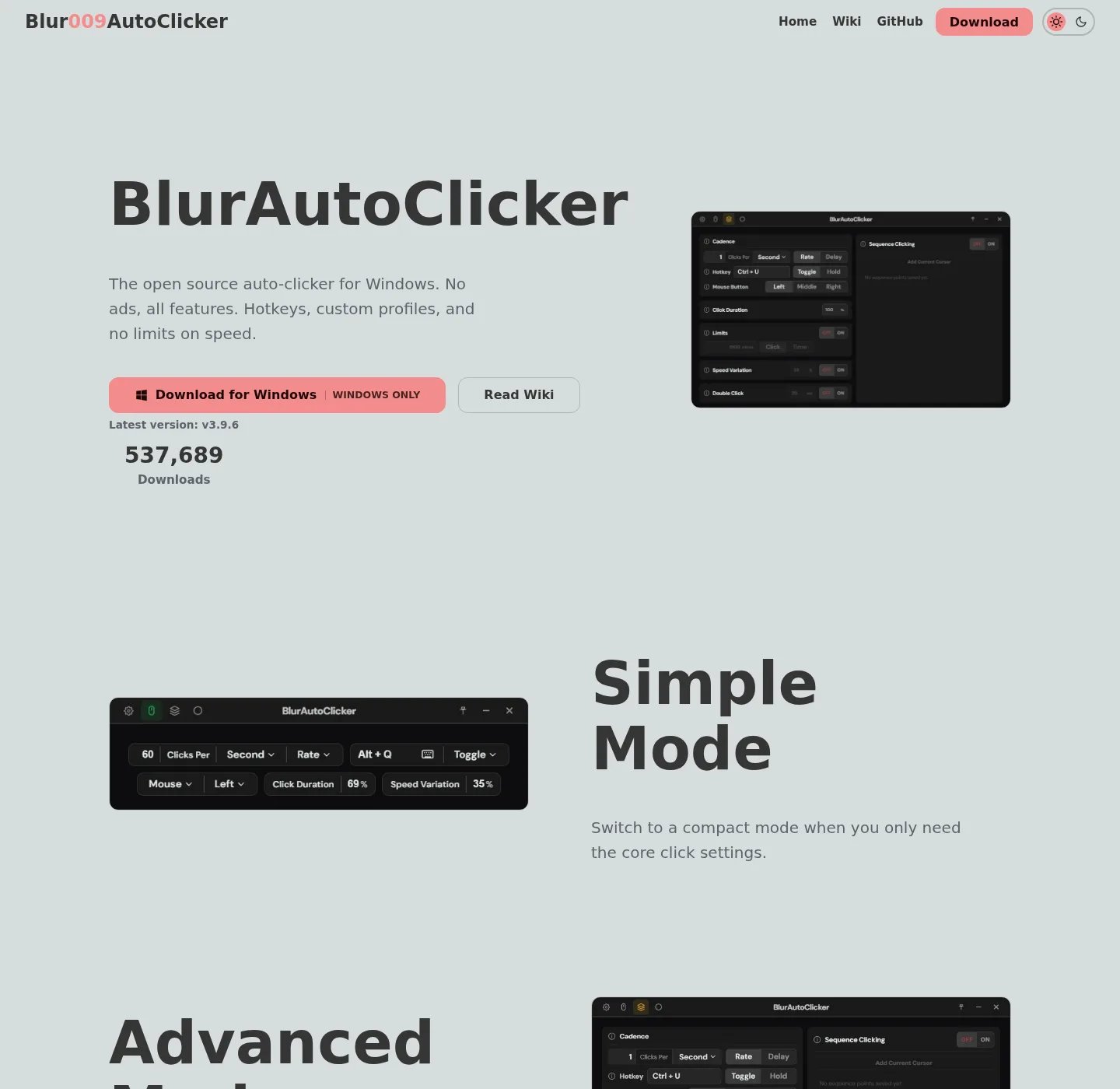
Blur Auto Clicker is made for Windows, GPL-3.0, no account. README features: simple mode (buttons, keyboard key, hold or toggle, customizable hotkeys, green running logo) and advanced mode (duty cycle, random CPS, edge stopping, click and time limits, double clicks, position clicking, per second through per day). CPS cap about 500 because of Windows mouse events. WebView2 UI, RAM around 100mb and under 200mb.
Install lands in %LocalAppData%\BlurAutoClicker via winget or the x64 setup exe. Config in %AppData%\BlurAutoClicker. Source: Blur009/Blur-AutoClicker. Releases: GitHub Releases. Hotkeys: auto clicker hotkeys. Keyboard: keyboard auto clicker.
Feature table
| Feature | Blur Auto Clicker | AutoHotkey |
|---|---|---|
| Shape | One-window CPS clicker | Scripting language |
| Vendor site | GitHub | autohotkey.com |
| License | GPL-3.0 | Open source on the vendor site |
| How you set clicks | UI: interval, button, hotkey | You write a script |
| Logic and conditions | No script language in the README | Core reason to use it |
| Hold vs toggle | Yes | You code the behavior |
| Position click | Advanced mode, pick a spot | You code coordinates |
| CPS cap | About 500 in the README | Whatever you script, OS limits still apply |
| Import from the other tool | None documented | None documented |
| Windows install | Winget id Blur009.BlurAutoClicker | AutoHotkey installer on autohotkey.com |
| Account | None | None required for local scripts |
| Best fit | Repeated clicks at a set rate | Automation beyond a clicker window |
When AutoHotkey is the better fit
Pick AutoHotkey when the task branches: click only if a window title matches, send keys, wait, repeat a mixed workflow. Pick it when you already have scripts, or when a clicker UI cannot express the job. Read autohotkey.com for that product. This guide does not replace AutoHotkey documentation.
A click loop in AutoHotkey is still a script you maintain. If all you wanted was 10 clicks per second on the foreground window, the clicker is the smaller tool.
When a one-window clicker is enough
Pick Blur Auto Clicker when you want interval units, random CPS, limits, edge stop, double clicks, or position clicking without a .ahk file. Set a stop hotkey first. Clicks go to the foreground window. Do not treat this as a game-cheat walkthrough.
If an extra unsigned clicker exe is also on Desktop, remove it after the official install: move leftover clicker exes. From GS freeware: switch from GS Auto Clicker. Interval detail: auto clicker interval. Position: position clicking.
People search other freeware clicker names, including leftover wrapper names, for a GUI CPS tool. AutoHotkey is not that GUI. Blur Auto Clicker is.
Install path
Windows 10 1809+ or Windows 11 with App Installer: use the CopyRow command. Or take the current x64 setup from Releases and ignore .sig plus latest.json. Portable zip: portable or setup. Winget notes: winget auto clicker. Windows install: install on Windows. This computer: auto clicker for this computer. Releases: auto clicker releases. GitHub: open source auto clicker on GitHub. Windows cluster: open source auto clicker on Windows. Safe download: download safely. About: about.
SmartScreen may warn on the unsigned setup. Microsoft SmartScreen and windows-release-trust.md explain unsigned versus a virus verdict. License: GPL-3.0.
License, unsigned setup, and first launch
Blur Auto Clicker is GPL-3.0. AutoHotkey is its own open-source project on autohotkey.com. The Blur installer is not Authenticode-signed. SmartScreen may show Windows protected your PC. Microsoft explains that prompt as an unsigned-file warning, not a virus verdict. Repo: windows-release-trust.md.
After winget, launch %LocalAppData%\BlurAutoClicker\BlurAutoClicker.exe. WebView2 draws the window. Set a hotkey before a CPS test. README cap is about 500. Config in %AppData%\BlurAutoClicker. No account. Product home: autoclicker.blur009.com. Build: build from source. Keyboard: keyboard auto clicker. Keep AutoHotkey for scripts. Keep this auto clicker for a CPS window. Set interval, button, and hotkey in that window rather than writing a click loop.
After you pick the clicker
If the table pointed you at a one-window CPS tool, install Blur Auto Clicker and re-enter interval, button, and hotkey. There is no .ahk importer. Config: %AppData%\BlurAutoClicker. Exe: %LocalAppData%\BlurAutoClicker\BlurAutoClicker.exe. Portable zip: portable or setup. Interval: auto clicker interval. Position: position clicking. Cleanup of extra unsigned clickers: move leftover clicker exes. Switch from GS: switch from GS Auto Clicker.
What a script still owns
AutoHotkey stays the better pick when the job is a script: window titles, pixel searches, loops that branch, or a file you already maintain. Those jobs do not become a CPS window just because a GitHub setup is easier to fetch. Keep the .ahk file. Keep the editor you already use. Keep Send, SendInput, or ControlClick as the language documents them.
A one-window repeat job is the opposite shape. Interval, button or key, hold or toggle, and a hotkey live in the installed program. There is no import of an AutoHotkey file into that window. Re-type the three values if you leave the script behind. If both tools sit on the same PC, do not bind the same F-key in both. Two listeners on one hotkey is how a click fires twice.
tinytask.net and murgee.com remain vendor pages for other shapes. AutoHotkey documentation stays on autohotkey.com. Fetch the Windows setup only from GitHub Releases or from the README winget id. Ignore updater sidecars. Config after setup sits under AppData. The exe after setup sits under LocalAppData. Portable mode, if you unpack a zip, keeps data next to the exe after the documented portable.txt sentence. None of that replaces a script that already works.
Frequently asked questions
Is AutoHotkey an auto clicker?
AutoHotkey is a scripting language on autohotkey.com. You can write a click loop. It is not a one-window CPS auto clicker. Blur Auto Clicker sets rate and hotkey in the UI without a script file.
Can I import an AutoHotkey script into this auto clicker?
No. The Blur README does not document import from .ahk files. Re-enter interval, button, and hotkey in the window if the job is repeated clicks. Keep AutoHotkey when you still need script logic.
Is this auto clicker open source like AutoHotkey?
Yes, both are open source. Blur Auto Clicker is GPL-3.0 on GitHub. AutoHotkey is its own project on autohotkey.com. Different licenses, different tools. Clicker repo: Blur009/Blur-AutoClicker.
When should I pick Blur over AutoHotkey?
Pick Blur Auto Clicker for interval units, hold or toggle, position clicking, edge stopping, and a CPS cap around 500 without writing a loop. Pick AutoHotkey when the task needs conditions, multiple windows, or text expansion.
How do I install Blur on Windows?
Run winget install -e --id Blur009.BlurAutoClicker --source winget --silent on Windows 10 or 11 with App Installer. AutoHotkey stays on autohotkey.com. Related: winget auto clicker.