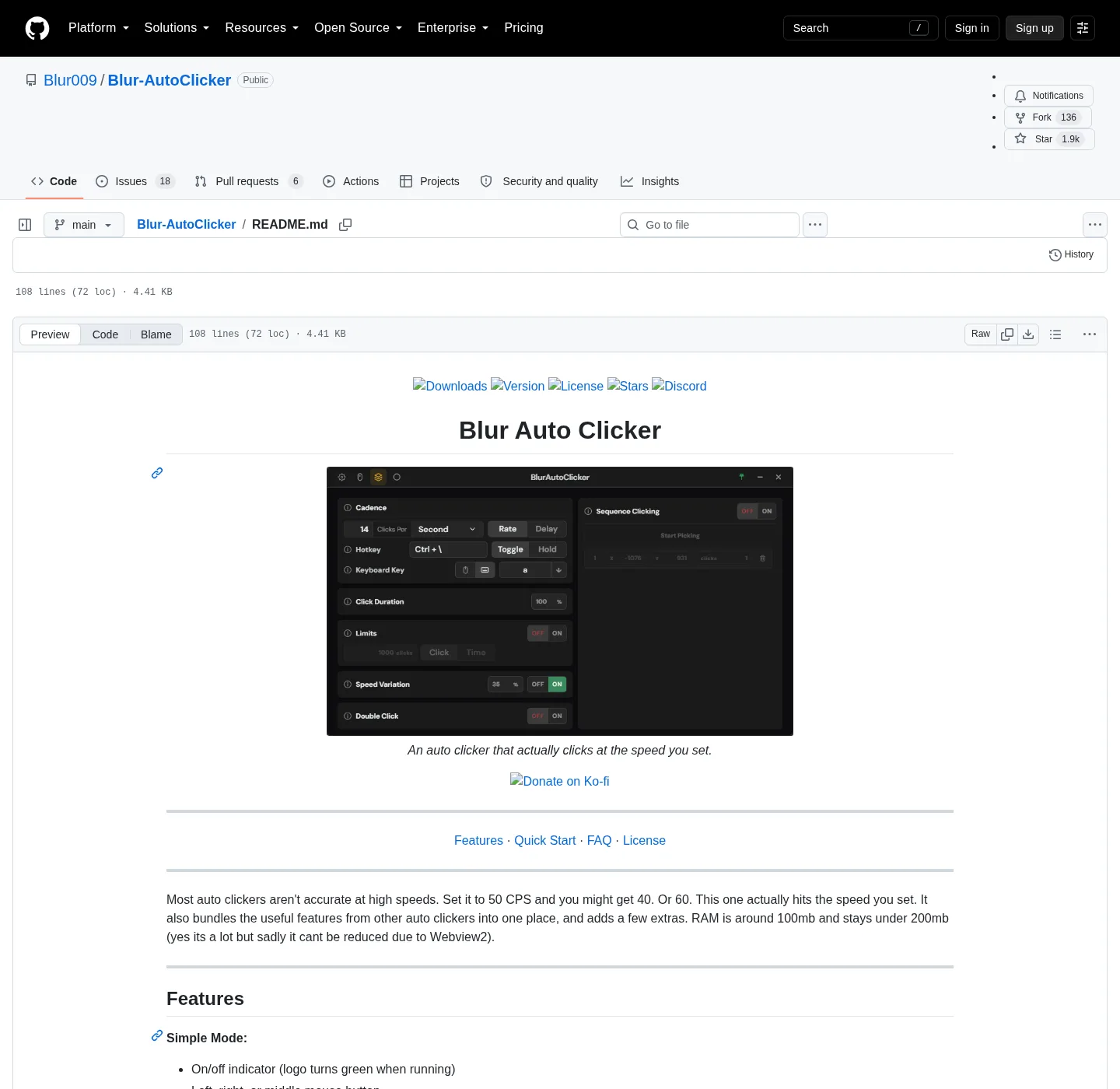
Interval means CPS on this auto clicker
Blur Auto Clicker is built so the rate you set is the rate you get, within what Windows will actually deliver. Interval is CPS (clicks per second) plus optional units per minute, hour, or day in advanced mode. That is different from TinyTask playback of a recording and different from an AutoHotkey loop you write by hand. The field in the window is the contract. Compare: vs TinyTask, vs AutoHotkey.
Install:
winget install -e --id Blur009.BlurAutoClicker --source winget --silentRelated: install on Windows, auto clicker hotkeys, guides, auto clicker. License: GPL-3.0. Files on GitHub Releases.
Why the default cap is about 500
The README FAQ asks why CPS is capped at 500. The answer is a Windows limit around 500 CPS for mouse events. Timer resolution bottoms out around 1ms (1000 CPS), but Windows still has other work to do, so a practical ceiling sits lower, around 800 on some machines. The project sets 500 because it cannot guarantee a higher rate on every PC. A 1000 CPS setting is available and not recommended.
If someone promises 1000 CPS in a search result, that is not this README. Measure on your hardware if you raise the setting, and expect missed events. This guide does not treat a high CPS number as a game-cheat target. Clicks go to the foreground window.
Per second, minute, hour, or day
Fast jobs stay per second. Slow jobs can use per minute, hour, or day so you are not converting delays in your head. A once-an-hour click is still an auto clicker job; it does not require a script. Pair slow units with toggle, because holding a key for an hour is not a plan. Hotkey modes: auto clicker hotkeys.
Simple mode is the on/off clicker: button or keyboard key, hold or toggle, customizable hotkeys, green running logo. Advanced mode adds the extra interval units plus duty cycle, random CPS, edge stopping, click and time limits, double clicks, and position clicking. Keyboard repeats: keyboard auto clicker. Fixed point: position clicking.
Random CPS and duty cycle
Random CPS sets a range instead of a single rate. Use it when a fixed cadence is too regular for the job you have. The official homepage is explicit: speed variation does not save you from getting banned, and this is not a tool for cheating in videogames. Quote that as a product warning, not as advice to try.
Duty cycle is click timing: the split of the click inside each interval. It is not a second CPS cap. It does not bypass the Windows mouse-event limit. Set CPS first, then timing, then test on a disposable window.
Click limits, time limits, and edge stop
Advanced mode can stop after a number of clicks or after a duration. That is useful when toggle would otherwise run until you remember the hotkey. Edge and corner stopping turns the clicker off when the cursor gets to the screen edge. Treat those as backups. The hotkey is still the control you should be able to hit immediately.
| Control | What it sets | Stops the run? |
|---|---|---|
| CPS / interval | Rate, including per second through per day | No, unless you set 0 |
| Random CPS | A range around that rate | No |
| Duty cycle | Click timing inside the interval | No |
| Click limit | Maximum clicks | Yes, when the count hits |
| Time limit | Maximum run duration | Yes, when the timer hits |
| Edge / corner stop | Auto-off near screen edges | Yes, when the cursor hits the edge |
| Hotkey | Start and stop | Yes, on toggle press or hold release |
| README CPS cap | About 500 default; 1000 not recommended | N/A, a ceiling |
MurGee and GS also talk about interval and click counts on their products. There is no import of those numbers. Re-enter the rate in Blur: switch from GS Auto Clicker, vs MurGee, vs GS Auto Clicker.
How to set the rate
Launch %LocalAppData%\BlurAutoClicker\BlurAutoClicker.exe after WebView2 is present. RAM around 100mb and under 200mb per the README. Set the hotkey first. Then set CPS and units. Then optional random range, duty cycle, and limits. Start on a window you can afford to click. Watch the green logo. Stop. If the observed rate is lower than the field, you have hit OS scheduling, not a hidden second cap in this guide.
Old v2 configs will not open in v3+ and are deleted on first launch. If an old exe is still beside the new install, delete it; the installer will not.
Install path for interval work
Winget id Blur009.BlurAutoClicker with App Installer on Windows 10 1809+ or Windows 11. Setup exe pattern BlurAutoClicker_*_x64-setup.exe. Portable zip on the same tag: portable or setup. Ignore .sig and latest.json. Winget notes: winget auto clicker. This computer: auto clicker for this computer. Releases: auto clicker releases. GitHub: open source auto clicker on GitHub. Safe: download safely, is this auto clicker safe. Windows cluster: open source auto clicker on Windows. About: about.
SmartScreen may warn because the installer is not Authenticode-signed. Microsoft SmartScreen and windows-release-trust.md. Build your own bits: BUILDING.md and build from source. Product home: autoclicker.blur009.com. License: GPL-3.0.
Interval steps:
- Run the official winget command or take the x64 setup from GitHub Releases.
- Choose per second, minute, hour, or day to match how often the foreground window should be clicked.
- Keep fast jobs around 500 CPS unless you accept that 1000 CPS is not recommended.
- Set hold or toggle, run on a disposable window, and stop before you aim at real work.
Frequently asked questions
Why is CPS capped at 500 on this auto clicker?
The README says Windows has a limit around 500 CPS for mouse events. Timer resolution can approach 1ms, but the practical cap is lower, so the default is about 500. A 1000 CPS setting exists and is not recommended.
Can I run 1000 CPS on this auto clicker?
A 1000 CPS setting is available and not recommended. The README does not promise that rate on every machine. Stay near the default cap unless you are measuring on your own PC and accept missed events.
What interval units does this auto clicker support?
Per second, minute, hour, or day. That is advanced-mode interval, on top of a CPS field. Slow jobs use per hour or per day. Fast jobs stay per second, under the README cap of about 500.
What is random CPS on this auto clicker?
Random CPS picks a rate inside a range you set. The project homepage says speed variation does not save you from a game ban and this is not a cheating tool. Treat it as timing jitter, not stealth.
What is duty cycle on this auto clicker?
Duty cycle is adjustable click timing in advanced mode: how the down and up parts of a click are split inside each interval. Set it after you pick CPS. It does not raise the Windows mouse-event cap.